This documentation is available as Markdown for AI agents and LLMs. See the full Markdown index or append .md to any documentation URL.

菜单

与 @react-native-menu/menu 兼容的菜单。

Android
iOS
Included in Expo Go
Recommended version:
~58.0.15

一个 MenuView 组件,其 API 与 @react-native-menu/menu 兼容。支持单击(默认)和长按(shouldOpenOnLongPress)触发。

🌐 A MenuView component with an API compatible with @react-native-menu/menu. Supports both single-tap (default) and long-press (shouldOpenOnLongPress) triggers.

在内部,这个组件封装了平台特定的 @expo/ui 原语:

🌐 Under the hood this component wraps the platform-specific @expo/ui primitives:

如果你需要更底层的控制,请直接使用那些原语。

🌐 If you need lower-level control, use those primitives directly.
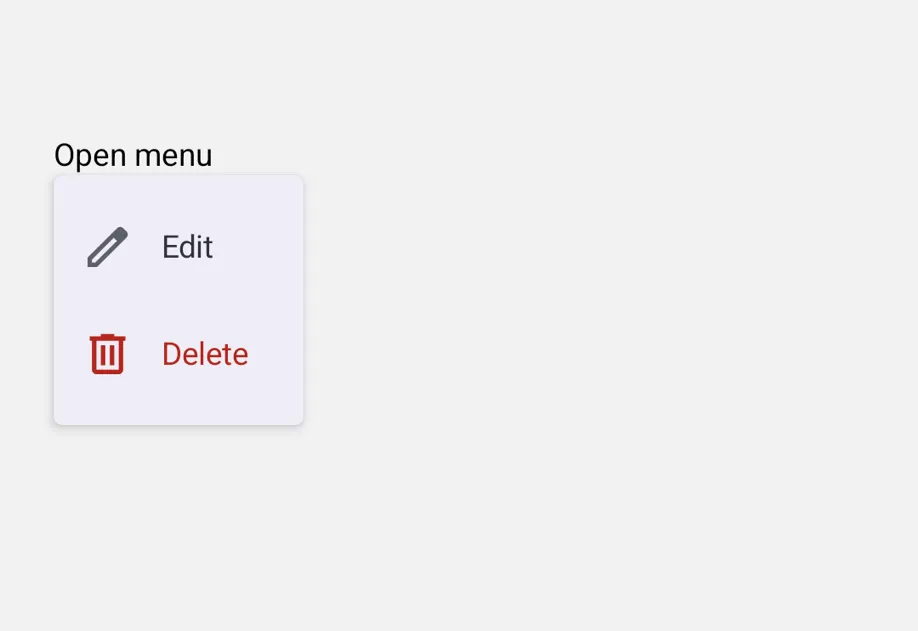
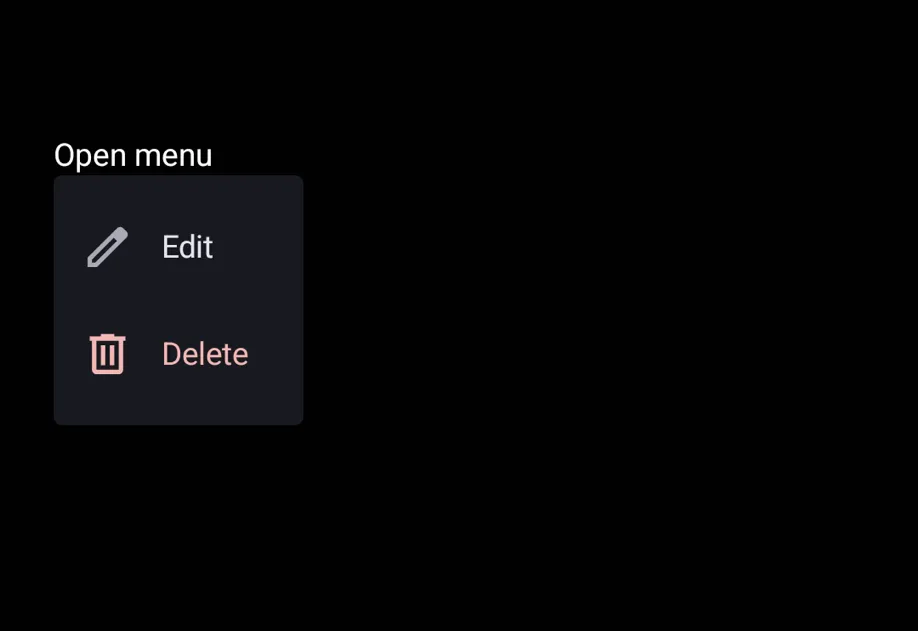
An open menu with an Edit row and a Delete rowAn open menu with an Edit row and a Delete row

安装

🌐 Installation

Terminal
- npx expo install @expo/ui
- yarn expo install @expo/ui
- pnpm expo install @expo/ui
- bun expo install @expo/ui

If you are installing this in an existing React Native app, make sure to install expo in your project.

从 @react-native-menu/menu 迁移

🌐 Migrating from @react-native-menu/menu

  • 将导入从 import { MenuView } from '@react-native-menu/menu' 更新为 import { MenuView } from '@expo/ui/community/menu'。
  • action.image 在 Android 上与上游不同。@react-native-menu/menu 期望一个 可绘制资源名称 字符串(例如 'ic_menu_add'),它会在 android/app/src/main/res/drawable/ 中解析。此替换组件不解析可绘制资源名称——请改为传入 ImageSourcePropType(例如 require('@expo/material-symbols/edit.xml'))。在 iOS 上,字符串值可作为 SF Symbol 名称使用。使用 Icon.select 在每个调用位置定义两者,以便未使用的一侧在每个平台上被摇树优化掉。
  • title 仅在 iOS 上呈现为章节标题;Android 的 Material DropdownMenu 没有标题槽。
  • 在安卓上,MenuView 会将触发器封装在它自己的 Pressable 中以打开菜单,因此附加在你作为 children 传入的 Pressable 上的 onPress/onLongPress 处理器不会触发——外部封装器会占用手势。将该处理器改放到你的 onPressAction 切换中,或者如果你需要在触发器上保留独立的点击和长按动作,可以使用更底层的 DropdownMenu 原语。
  • 命令式 ref.show() API 仅限 Android。SwiftUI Menu/ContextMenu 没有可编程的开放 API,因此在 iOS 上调用不起作用(并会有一次性开发者警告)。
  • 以下来自 @react-native-menu/menu 的属性不受支持:themeVariant、hitSlop、isAnchoredToRight、subtitle、keepsMenuPresented、preferredElementSize 和 state: 'mixed'。

基本用法

🌐 Basic usage

把任何视图作为触发器。MenuView 会附加自己的点击或长按处理。

🌐 Pass any view as the trigger. MenuView attaches its own tap or long-press handling.

MenuExample.tsx
import { Icon } from '@expo/ui'; import { MenuView } from '@expo/ui/community/menu'; import { Text, useColorScheme, View } from 'react-native'; const editIcon = Icon.select({ ios: 'pencil', android: import('@expo/material-symbols/edit.xml'), }); const deleteIcon = Icon.select({ ios: 'trash', android: import('@expo/material-symbols/delete.xml'), }); export default function MenuExample() { const colorScheme = useColorScheme(); return ( <MenuView actions={[ { id: 'edit', title: 'Edit', image: editIcon }, { id: 'delete', title: 'Delete', image: deleteIcon, attributes: { destructive: true } }, ]} onPressAction={e => console.log(e.nativeEvent.event)}> <View> <Text style={{ color: colorScheme === 'dark' ? '#FFFFFF' : '#000000' }}>Open menu</Text> </View> </MenuView> ); }

长按(上下文菜单)

🌐 Long-press (context menu)

将 shouldOpenOnLongPress 设置为以上下文菜单的形式呈现。在 Android 上,相同的受控 DropdownMenu 是通过长按触发器而不是轻点来打开的。在 iOS 上,这使用 SwiftUI 的 ContextMenu,并将触发器显示为模糊预览。

🌐 Set shouldOpenOnLongPress to render as a context menu. On Android, the same controlled DropdownMenu opens from a long press on the trigger instead of a tap. On iOS, this uses SwiftUI's ContextMenu and shows the trigger as a blurred preview.

LongPressMenuExample.tsx
import { Icon } from '@expo/ui'; import { MenuView } from '@expo/ui/community/menu'; import { Text, useColorScheme, View } from 'react-native'; const copyIcon = Icon.select({ ios: 'doc.on.doc', android: import('@expo/material-symbols/content_copy.xml'), }); const shareIcon = Icon.select({ ios: 'square.and.arrow.up', android: import('@expo/material-symbols/share.xml'), }); export default function LongPressMenuExample() { const colorScheme = useColorScheme(); return ( <MenuView shouldOpenOnLongPress actions={[ { id: 'copy', title: 'Copy', image: copyIcon }, { id: 'share', title: 'Share', image: shareIcon }, ]} onPressAction={e => console.log(e.nativeEvent.event)}> <View style={{ padding: 8 }}> <Text style={{ color: colorScheme === 'dark' ? '#FFFFFF' : '#000000' }}>Long-press me</Text> </View> </MenuView> ); }

子菜单和内联部分

🌐 Submenus and inline sections

subactions 默认将嵌套操作呈现为子菜单。在父级上设置 displayInline: true 可以将子项呈现为内联部分,这对于分组很有用。在 Android 上,只有分隔线会显示(Material 的 DropdownMenu 没有部分原语)。在 iOS 上,父级的 title 会变成部分标题。

SubmenuExample.tsx
import { MenuView } from '@expo/ui/community/menu'; import { Text, useColorScheme, View } from 'react-native'; export default function SubmenuExample() { const colorScheme = useColorScheme(); return ( <MenuView actions={[ { id: 'rename', title: 'Rename' }, { id: 'sort', title: 'Sort by', subactions: [ { id: 'sort-name', title: 'Name' }, { id: 'sort-date', title: 'Date' }, { id: 'sort-size', title: 'Size' }, ], }, { id: 'share-section', title: 'Share', displayInline: true, subactions: [ { id: 'share-airdrop', title: 'AirDrop' }, { id: 'share-message', title: 'Message' }, ], }, ]} onPressAction={e => console.log(e.nativeEvent.event)}> <View> <Text style={{ color: colorScheme === 'dark' ? '#FFFFFF' : '#000000' }}>Open menu</Text> </View> </MenuView> ); }

切换带有勾选的项目

🌐 Toggle items with checkmarks

将 state 设置为 'on' 或 'off',可以让一个动作显示为可切换的项目,并在开启时显示前置勾选。选择该动作会触发 onPressAction,调用者需要负责更新状态。

🌐 Set state to 'on' or 'off' to render an action as a toggleable item with a leading checkmark when on. Selecting the action fires onPressAction and the caller is responsible for updating the state.

ToggleMenuExample.tsx
import { MenuView } from '@expo/ui/community/menu'; import { useState } from 'react'; import { Text, useColorScheme, View } from 'react-native'; export default function ToggleMenuExample() { const colorScheme = useColorScheme(); const [pinned, setPinned] = useState(false); return ( <MenuView actions={[{ id: 'pin', title: 'Pin to top', state: pinned ? 'on' : 'off' }]} onPressAction={e => { if (e.nativeEvent.event === 'pin') setPinned(p => !p); }}> <View> <Text style={{ color: colorScheme === 'dark' ? '#FFFFFF' : '#000000' }}> {pinned ? 'Pinned' : 'Not pinned'} </Text> </View> </MenuView> ); }

应用接口

🌐 API

import { MenuView } from '@expo/ui/community/menu';

No API data file found, sorry!