This documentation is available as Markdown for AI agents and LLMs. See the full Markdown index or append .md to any documentation URL.
This is documentation for the next SDK version. For up-to-date documentation, see the
latest version (SDK 57).
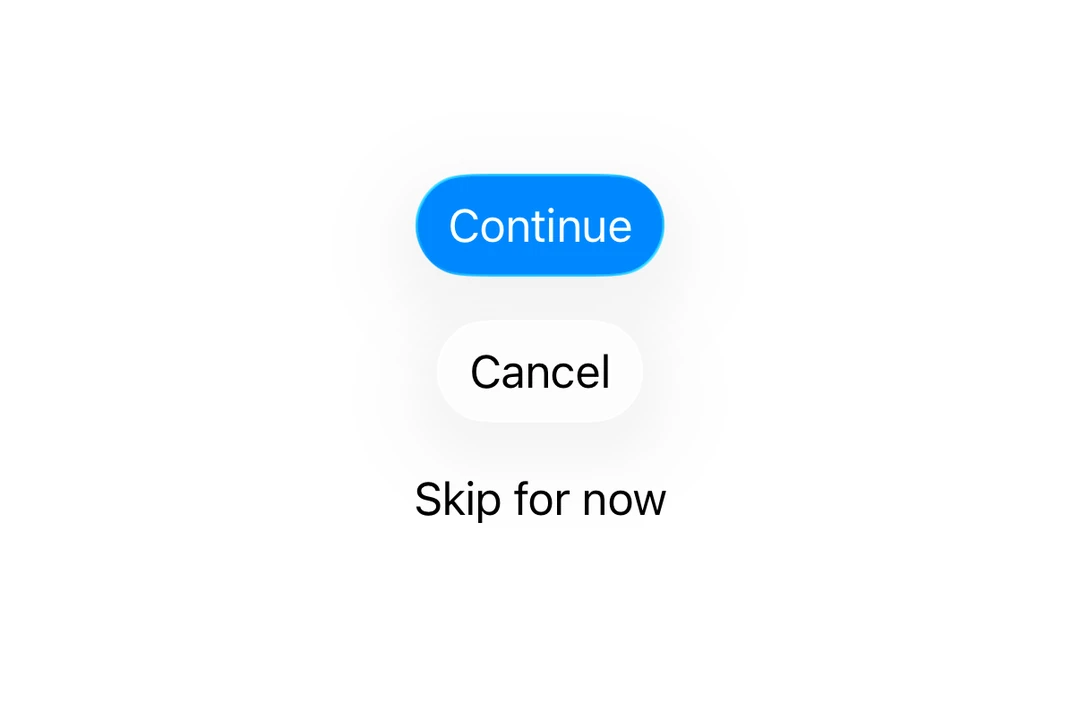
Button A SwiftUI Button component for displaying native buttons.
For cross-platform usage, see the universal Button
Expo UI Button matches the official SwiftUI Button API and supports styling via the buttonStylecontrolSize
Installation
- npx expo install @expo/ui
- yarn expo install @expo/ui
- pnpm expo install @expo/ui
- bun expo install @expo/ui
If you are installing this in an existing React Native app , make sure to install expo in your project.
Usage
import { Host , Button } from '@expo/ui/swift-ui' ;
export default function BasicButtonExample ( ) {
return (
< Host style = { { flex: 1 } } >
< Button label = " Press me" onPress = { ( ) => alert ( 'Pressed!' ) } />
</ Host > ) ;
}
ButtonWithImageExample.tsx import { Host , Button } from '@expo/ui/swift-ui' ;
export default function ButtonWithImageExample ( ) {
return (
< Host style = { { flex: 1 } } >
< Button label = " Download" systemImage = " arrow.down.circle" onPress = { ( ) => alert ( 'Downloading...' ) } />
</ Host > ) ;
}
Use the labelStyle modifier to show only the icon while keeping the label for accessibility.
IconOnlyButtonExample.tsx import { Host , Button } from '@expo/ui/swift-ui' ;
import { labelStyle } from '@expo/ui/swift-ui/modifiers' ;
export default function IconOnlyButtonExample ( ) {
return (
< Host style = { { flex: 1 } } >
< Button label = " Settings" systemImage = " gear" modifiers = { [ labelStyle ( 'iconOnly' ) ] } onPress = { ( ) => alert ( 'Settings' ) } />
</ Host > ) ;
}
Use the buttonStyle modifier to change the button's appearance. Available styles are: bordered, borderedProminent, borderless, plain, glass, and glassProminent.
Note: The glass and glassProminent styles are only available on iOS 26+ when built with Xcode 26.
import { Host , Button , VStack } from '@expo/ui/swift-ui' ;
import { buttonStyle } from '@expo/ui/swift-ui/modifiers' ;
export default function ButtonStylesExample ( ) {
return (
< Host style = { { flex: 1 } } >
< VStack spacing = { 8 } >
< Button label = " Bordered" modifiers = { [ buttonStyle ( 'bordered' ) ] } />
< Button label = " Bordered Prominent" modifiers = { [ buttonStyle ( 'borderedProminent' ) ] } />
< Button label = " Borderless" modifiers = { [ buttonStyle ( 'borderless' ) ] } />
< Button label = " Plain" modifiers = { [ buttonStyle ( 'plain' ) ] } />
</ VStack >
</ Host > ) ;
}
Use the buttonBorderShape modifier to change the shape of a styled button. Available shapes are: automatic, capsule, roundedRectangle, and circle (iOS 17+).
ButtonBorderShapeExample.tsx import { Host , Button } from '@expo/ui/swift-ui' ;
import {
buttonStyle,
controlSize,
buttonBorderShape,
labelStyle,
} from '@expo/ui/swift-ui/modifiers' ;
export default function ButtonBorderShapeExample ( ) {
return (
< Host style = { { flex: 1 } } >
< Button label = " Favorite" systemImage = " heart.fill" modifiers = { [
buttonStyle ( 'glass' ) ,
controlSize ( 'extraLarge' ) ,
labelStyle ( 'iconOnly' ) ,
buttonBorderShape ( 'circle' ) ,
] } onPress = { ( ) => alert ( 'Favorited' ) } />
</ Host > ) ;
}
Control sizes
Use the controlSize modifier to adjust the button size. Available sizes are: mini, small, regular, large, and extraLarge.
Note: The extraLarge size is only available on iOS 17+.
import { Host , Button , VStack } from '@expo/ui/swift-ui' ;
import {
buttonStyle,
controlSize,
} from '@expo/ui/swift-ui/modifiers' ;
export default function ControlSizeExample ( ) {
return (
< Host style = { { flex: 1 } } >
< VStack spacing = { 8 } >
< Button label = " Mini" modifiers = { [ controlSize ( 'mini' ) , buttonStyle ( 'bordered' ) ] } />
< Button label = " Small" modifiers = { [
controlSize ( 'small' ) ,
buttonStyle ( 'bordered' ) ,
] } />
< Button label = " Regular" modifiers = { [
controlSize ( 'regular' ) ,
buttonStyle ( 'bordered' ) ,
] } />
< Button label = " Large" modifiers = { [
controlSize ( 'large' ) ,
buttonStyle ( 'bordered' ) ,
] } />
</ VStack >
</ Host > ) ;
}
Use the role prop to indicate the semantic role of the button. Available roles are: default, cancel, and destructive.
import { Host , Button , VStack } from '@expo/ui/swift-ui' ;
export default function ButtonRolesExample ( ) {
return (
< Host style = { { flex: 1 } } >
< VStack spacing = { 8 } >
< Button label = " Default" role = " default" />
< Button label = " Cancel" role = " cancel" />
< Button label = " Delete" role = " destructive" />
</ VStack >
</ Host > ) ;
}
Use the tint modifier to change the button's color.
import { Host , Button } from '@expo/ui/swift-ui' ;
import { tint } from '@expo/ui/swift-ui/modifiers' ;
export default function TintedButtonExample ( ) {
return (
< Host style = { { flex: 1 } } >
< Button label = " Custom Color" modifiers = { [ tint ( '#FF6347' ) ] } />
</ Host > ) ;
}
Use the disabled modifier to disable the button.
DisabledButtonExample.tsx import { Host , Button } from '@expo/ui/swift-ui' ;
import { disabled } from '@expo/ui/swift-ui/modifiers' ;
export default function DisabledButtonExample ( ) {
return (
< Host style = { { flex: 1 } } >
< Button label = " Disabled" modifiers = { [ disabled ( ) ] } />
</ Host > ) ;
}
Custom label content
You can pass custom components as children for more complex button label content.
import {
Host ,
Button ,
VStack ,
Image ,
Text ,
} from '@expo/ui/swift-ui' ;
export default function CustomContentExample ( ) {
return (
< Host style = { { flex: 1 } } >
< Button onPress = { ( ) => console . log ( 'Pressed!' ) } >
< VStack spacing = { 4 } >
< Image systemName = " folder" />
< Text > Folder </ Text >
</ VStack >
</ Button >
</ Host > ) ;
}
API
import { Button } from '@expo/ui/swift-ui' ;
No API data file found, sorry!