This documentation is available as Markdown for AI agents and LLMs. See the full Markdown index or append .md to any documentation URL.

NavigationSplitView

A SwiftUI NavigationSplitView component that presents two or three columns side by side.

iOS
tvOS
Included in Expo Go

Expo UI NavigationSplitView matches the official SwiftUI NavigationSplitView API and shows two or three columns side by side. The columns collapse into one when there is not enough room.
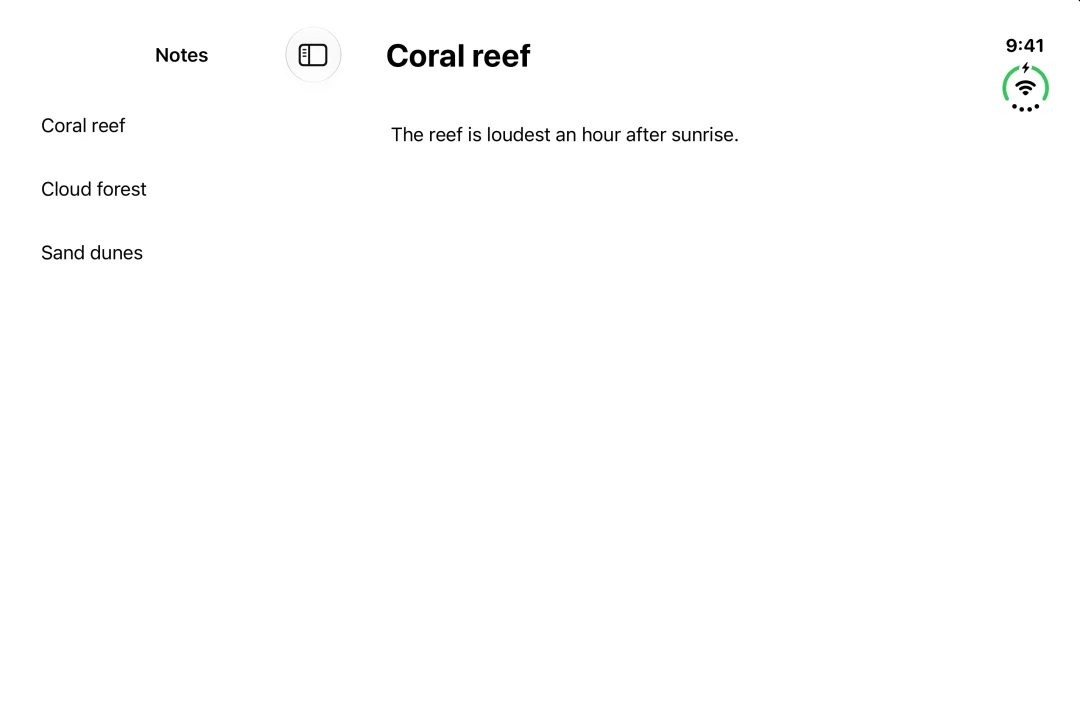
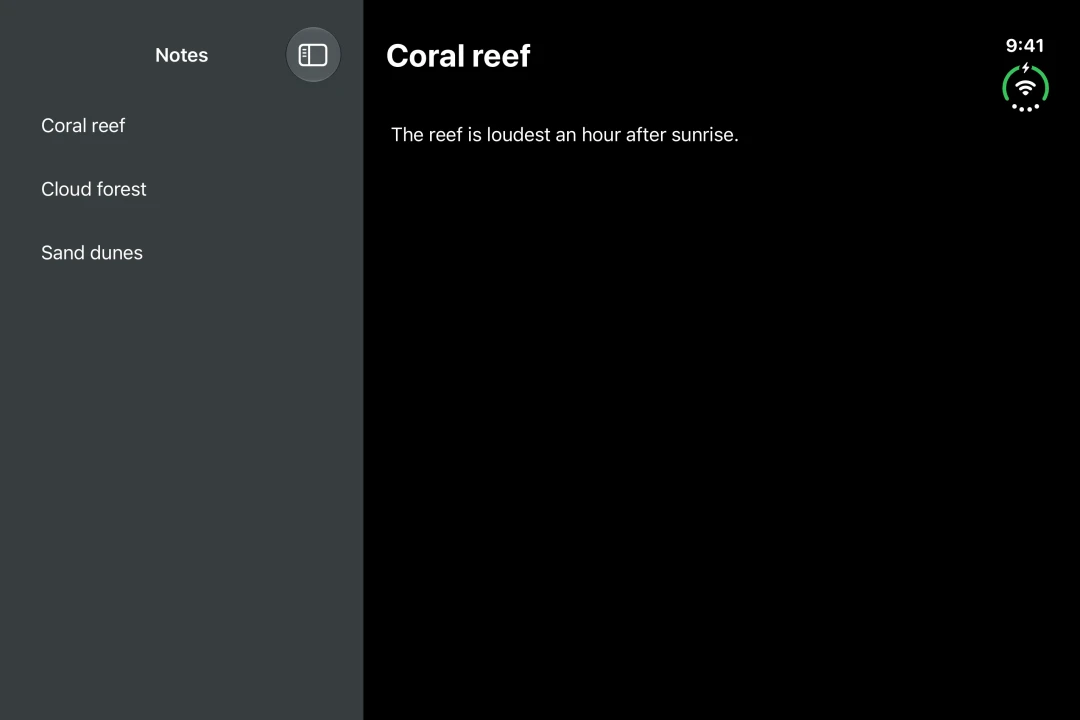
A Notes sidebar next to the detail of the selected noteA Notes sidebar next to the detail of the selected note

Installation

Terminal
- npx expo install @expo/ui
- yarn expo install @expo/ui
- pnpm expo install @expo/ui
- bun expo install @expo/ui

If you are installing this in an existing React Native app, make sure to install expo in your project.

Usage

Two columns

Provide NavigationSplitView.Sidebar and NavigationSplitView.Detail. Set the title of each column with the navigationTitle modifier.

On iPhone, only the sidebar shows. On iOS 17 and later, set preferredCompactColumn to 'detail' to open the detail on tap. Pass the value from onPreferredCompactColumnChange back in so the back button works.

NavigationSplitViewExample.tsx
import { Button, Host, List, NavigationSplitView, type NavigationSplitViewColumn, Text, } from '@expo/ui/swift-ui'; import { buttonStyle, frame, navigationTitle, padding, } from '@expo/ui/swift-ui/modifiers'; import { useState } from 'react'; const NOTES = [ { id: 'reef', title: 'Coral reef', body: 'The reef is loudest an hour after sunrise.', }, { id: 'forest', title: 'Cloud forest', body: 'Mist arrives every afternoon, like clockwork.', }, { id: 'dunes', title: 'Sand dunes', body: 'The ridge moves about four metres a year.', }, ]; export default function NavigationSplitViewExample() { const [selectedId, setSelectedId] = useState(NOTES[0].id); const [compactColumn, setCompactColumn] = useState<NavigationSplitViewColumn>('sidebar'); const selected = NOTES.find(note => note.id === selectedId) ?? NOTES[0]; return ( <Host style={{ flex: 1 }}> <NavigationSplitView preferredCompactColumn={compactColumn} onPreferredCompactColumnChange={setCompactColumn}> <NavigationSplitView.Sidebar> <List modifiers={[navigationTitle('Notes')]}> {NOTES.map(note => ( <Button key={note.id} modifiers={[buttonStyle('plain')]} onPress={() => { setSelectedId(note.id); setCompactColumn('detail'); }}> <Text>{note.title}</Text> </Button> ))} </List> </NavigationSplitView.Sidebar> <NavigationSplitView.Detail> <Text modifiers={[ padding({ all: 24 }), frame({ maxWidth: Infinity, maxHeight: Infinity, alignment: 'topLeading', }), navigationTitle(selected.title), ]}> {selected.body} </Text> </NavigationSplitView.Detail> </NavigationSplitView> </Host> ); }

Three columns

Add NavigationSplitView.Content between the sidebar and the detail. Set the width of a column with the navigationSplitViewColumnWidth modifier. Set how the columns share the space with the navigationSplitViewStyle modifier.

The split view picks the visible columns by default. Set columnVisibility to 'all' to show every column, or 'detailOnly' to show only the detail. When there is not enough room, it shows fewer columns. Pass the value from onColumnVisibilityChange back in. Otherwise, dragging the divider has no effect.

API

import { NavigationSplitView } from '@expo/ui/swift-ui';

No API data file found, sorry!