This documentation is available as Markdown for AI agents and LLMs. See the full Markdown index or append .md to any documentation URL.

TabView

A SwiftUI TabView component for paged or tabbed content.

iOS
tvOS
Included in Expo Go

Expo UI TabView matches the official SwiftUI TabView API and switches between styles via the tabViewStyle modifier.
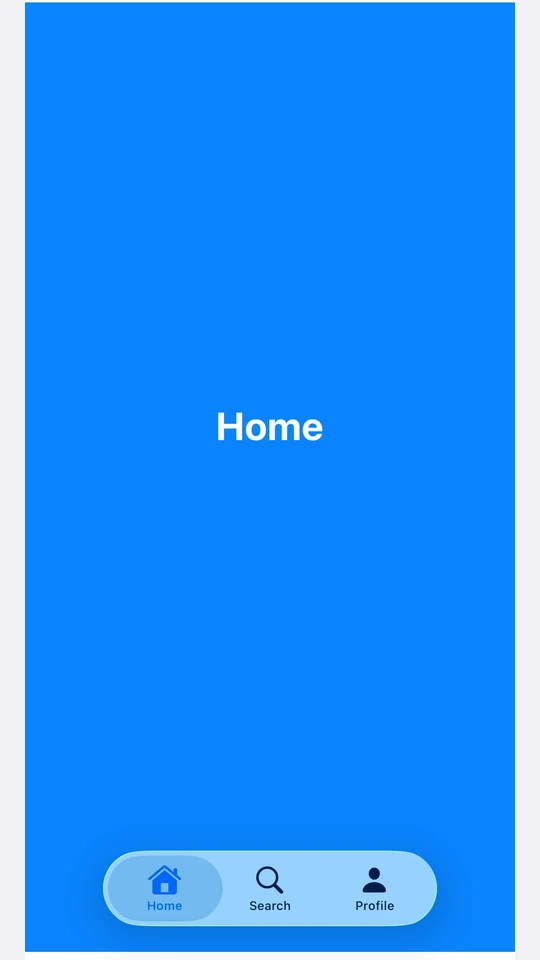

A TabView with a bottom tab bar showing Home, Search, and Profile tabs in iOS 26 Liquid Glass styleA TabView with a bottom tab bar showing Home, Search, and Profile tabs in iOS 26 Liquid Glass style

Installation

Terminal
- npx expo install @expo/ui
- yarn expo install @expo/ui
- pnpm expo install @expo/ui
- bun expo install @expo/ui

If you are installing this in an existing React Native app, make sure to install expo in your project.

Usage

Each page is a <TabView.Tab> child, identified by a value prop. TabView does not impose its own height — give it a frame, or place it inside a parent that does.

Page style (swipeable pager)

Use tabViewStyle({ type: 'page' }) for a horizontal pager with optional dot indicators. Pass defaultSelection to start the pager on a specific page without controlling it from React.

PagerExample.tsx
import { Host, Spacer, TabView, Text, VStack, } from '@expo/ui/swift-ui'; import { background, font, foregroundStyle, frame, tabViewStyle, } from '@expo/ui/swift-ui/modifiers'; const fillFrame = frame({ maxWidth: Infinity, maxHeight: Infinity, }); const pageFrame = frame({ minHeight: 320, maxHeight: 320 }); export default function PagerExample() { return ( <Host style={{ flex: 1 }}> <TabView defaultSelection="1" modifiers={[pageFrame, tabViewStyle({ type: 'page' })]}> <TabView.Tab value="0"> <Page label="Page 1" color="#6200EE" /> </TabView.Tab> <TabView.Tab value="1"> <Page label="Page 2" color="#03DAC5" /> </TabView.Tab> <TabView.Tab value="2"> <Page label="Page 3" color="#FF5722" /> </TabView.Tab> </TabView> </Host> ); } function Page({ label, color }: { label: string; color: string }) { return ( <VStack alignment="center" modifiers={[fillFrame, background(color)]}> <Spacer /> <Text modifiers={[ font({ size: 28, weight: 'bold' }), foregroundStyle('#FFFFFF'), ]}> {label} </Text> <Spacer /> </VStack> ); }

Controlled selection

Pass selection and onSelectionChange to drive the active tab from React state. Each <TabView.Tab>'s value is matched against selection. Add the animation modifier to animate transitions when selection changes from JS.

ControlledTabViewExample.tsx
import { useState } from 'react'; import { Button, Host, Spacer, TabView, Text, VStack, } from '@expo/ui/swift-ui'; import { animation, Animation, background, font, foregroundStyle, frame, tabViewStyle, } from '@expo/ui/swift-ui/modifiers'; const fillFrame = frame({ maxWidth: Infinity, maxHeight: Infinity, }); const pageFrame = frame({ minHeight: 320, maxHeight: 320 }); export default function ControlledTabViewExample() { const [selected, setSelected] = useState('0'); return ( <Host style={{ flex: 1 }}> <VStack> <Text>Selected: {selected}</Text> <Button label="Go to page 3" onPress={() => setSelected('2')} /> <TabView selection={selected} onSelectionChange={setSelected} modifiers={[ pageFrame, tabViewStyle({ type: 'page' }), animation(Animation.default, Number(selected)), ]}> <TabView.Tab value="0"> <Page label="Page 1" color="#6200EE" /> </TabView.Tab> <TabView.Tab value="1"> <Page label="Page 2" color="#03DAC5" /> </TabView.Tab> <TabView.Tab value="2"> <Page label="Page 3" color="#FF5722" /> </TabView.Tab> </TabView> </VStack> </Host> ); } function Page({ label, color }: { label: string; color: string }) { return ( <VStack alignment="center" modifiers={[fillFrame, background(color)]}> <Spacer /> <Text modifiers={[ font({ size: 28, weight: 'bold' }), foregroundStyle('#FFFFFF'), ]}> {label} </Text> <Spacer /> </VStack> ); }

Page indicator dots

Use the indexViewStyle modifier together with tabViewStyle({ type: 'page' }) to control the dot indicators. Set indexDisplayMode to 'always', 'never', or 'automatic', and backgroundDisplayMode to render a translucent pill behind the dots.

PageIndicatorExample.tsx
import { Host, Spacer, TabView, Text, VStack, } from '@expo/ui/swift-ui'; import { background, font, foregroundStyle, frame, indexViewStyle, tabViewStyle, } from '@expo/ui/swift-ui/modifiers'; const fillFrame = frame({ maxWidth: Infinity, maxHeight: Infinity, }); const pageFrame = frame({ minHeight: 320, maxHeight: 320 }); export default function PageIndicatorExample() { return ( <Host style={{ flex: 1 }}> <TabView modifiers={[ pageFrame, tabViewStyle({ type: 'page', indexDisplayMode: 'always', }), indexViewStyle({ backgroundDisplayMode: 'always' }), ]}> <TabView.Tab value="0"> <Page label="Page 1" color="#4F8DF6" /> </TabView.Tab> <TabView.Tab value="1"> <Page label="Page 2" color="#34C759" /> </TabView.Tab> <TabView.Tab value="2"> <Page label="Page 3" color="#FF9F0A" /> </TabView.Tab> </TabView> </Host> ); } function Page({ label, color }: { label: string; color: string }) { return ( <VStack alignment="center" modifiers={[fillFrame, background(color)]}> <Spacer /> <Text modifiers={[ font({ size: 28, weight: 'bold' }), foregroundStyle('#FFFFFF'), ]}> {label} </Text> <Spacer /> </VStack> ); }

Bottom tab bar

Use tabViewStyle({ type: 'automatic' }) for the SwiftUI default tab bar. Each tab's label and systemImage populate the bar item. Use the badge modifier on a tab to attach a badge to its bar item.

BottomTabsExample.tsx
import { useState } from 'react'; import { Host, Spacer, TabView, Text, VStack, } from '@expo/ui/swift-ui'; import { background, badge, font, foregroundStyle, frame, tabViewStyle, } from '@expo/ui/swift-ui/modifiers'; const fillFrame = frame({ maxWidth: Infinity, maxHeight: Infinity, }); export default function BottomTabsExample() { const [selected, setSelected] = useState('inbox'); return ( <Host style={{ flex: 1 }}> <TabView selection={selected} onSelectionChange={setSelected} modifiers={[tabViewStyle({ type: 'automatic' })]}> <TabView.Tab value="inbox" label="Inbox" systemImage="tray.fill" modifiers={[badge('3')]}> <Page label="Inbox" color="#4F8DF6" /> </TabView.Tab> <TabView.Tab value="sent" label="Sent" systemImage="paperplane.fill"> <Page label="Sent" color="#34C759" /> </TabView.Tab> <TabView.Tab value="drafts" label="Drafts" systemImage="square.and.pencil"> <Page label="Drafts" color="#FF9F0A" /> </TabView.Tab> </TabView> </Host> ); } function Page({ label, color }: { label: string; color: string }) { return ( <VStack alignment="center" modifiers={[fillFrame, background(color)]}> <Spacer /> <Text modifiers={[ font({ size: 28, weight: 'bold' }), foregroundStyle('#FFFFFF'), ]}> {label} </Text> <Spacer /> </VStack> ); }

API

import { TabView } from '@expo/ui/swift-ui';

No API data file found, sorry!