This documentation is available as Markdown for AI agents and LLMs. See the full Markdown index or append .md to any documentation URL.
TabView 用于分页或选项卡内容的 SwiftUI TabView 组件。
Recommended version:
~57.0.22
Expo UI TabView 与官方 SwiftUI TabView API 相匹配,并通过 tabViewStyle
🌐 Expo UI TabView matches the official SwiftUI TabView API and switches between styles via the tabViewStyle
安装
🌐 Installation
- npx expo install @expo/ui
- yarn expo install @expo/ui
- pnpm expo install @expo/ui
- bun expo install @expo/ui
If you are installing this in an existing React Native app , make sure to install expo in your project.
用法
🌐 Usage
每个页面都是一个 <TabView.Tab> 子元素,通过 value 属性标识。TabView 不会强加自己的高度——给它一个边框,或者将它放在一个会定义高度的父元素中。
🌐 Each page is a <TabView.Tab> child, identified by a value prop. TabView does not impose its own height — give it a frame, or place it inside a parent that does.
页面样式(可滑动分页器)
🌐 Page style (swipeable pager)
使用 tabViewStyle({ type: 'page' }) 创建带可选点指示器的水平分页器。传入 defaultSelection 可以从特定页面启动分页器,而无需通过 React 控制它。
🌐 Use tabViewStyle({ type: 'page' }) for a horizontal pager with optional dot indicators. Pass defaultSelection to start the pager on a specific page without controlling it from React.
import {
Host ,
Spacer ,
TabView ,
Text ,
VStack ,
} from '@expo/ui/swift-ui' ;
import {
background,
font,
foregroundStyle,
frame,
tabViewStyle,
} from '@expo/ui/swift-ui/modifiers' ;
const fillFrame = frame ( {
maxWidth: Infinity ,
maxHeight: Infinity ,
} ) ;
const pageFrame = frame ( { minHeight: 320 , maxHeight: 320 } ) ;
export default function PagerExample ( ) {
return (
< Host style = { { flex: 1 } } >
< TabView defaultSelection = " 1" modifiers = { [ pageFrame, tabViewStyle ( { type: 'page' } ) ] } >
< TabView.Tab value = " 0" >
< Page label = " Page 1" color = " #6200EE" />
</ TabView.Tab >
< TabView.Tab value = " 1" >
< Page label = " Page 2" color = " #03DAC5" />
</ TabView.Tab >
< TabView.Tab value = " 2" >
< Page label = " Page 3" color = " #FF5722" />
</ TabView.Tab >
</ TabView >
</ Host > ) ;
}
function Page ( { label, color } : { label: string ; color: string } ) {
return (
< VStack alignment = " center" modifiers = { [ fillFrame, background ( color) ] } >
< Spacer />
< Text modifiers = { [
font ( { size: 28 , weight: 'bold' } ) ,
foregroundStyle ( '#FFFFFF' ) ,
] } >
{ label}
</ Text >
< Spacer />
</ VStack > ) ;
}
受控选择
🌐 Controlled selection
将 selection 和 onSelectionChange 传入以从 React 状态控制活动标签页。每个 <TabView.Tab> 的 value 会与 selection 匹配。当 selection 从 JS 改变时,添加 animation
🌐 Pass selection and onSelectionChange to drive the active tab from React state. Each <TabView.Tab>'s value is matched against selection. Add the animationselection changes from JS.
ControlledTabViewExample.tsx import { useState } from 'react' ;
import {
Button ,
Host ,
Spacer ,
TabView ,
Text ,
VStack ,
} from '@expo/ui/swift-ui' ;
import {
animation,
Animation ,
background,
font,
foregroundStyle,
frame,
tabViewStyle,
} from '@expo/ui/swift-ui/modifiers' ;
const fillFrame = frame ( {
maxWidth: Infinity ,
maxHeight: Infinity ,
} ) ;
const pageFrame = frame ( { minHeight: 320 , maxHeight: 320 } ) ;
export default function ControlledTabViewExample ( ) {
const [ selected, setSelected] = useState ( '0' ) ;
return (
< Host style = { { flex: 1 } } >
< VStack >
< Text > Selected: { selected} </ Text >
< Button label = " Go to page 3" onPress = { ( ) => setSelected ( '2' ) } />
< TabView selection = { selected} onSelectionChange = { setSelected} modifiers = { [
pageFrame,
tabViewStyle ( { type: 'page' } ) ,
animation ( Animation . default , Number ( selected) ) ,
] } >
< TabView.Tab value = " 0" >
< Page label = " Page 1" color = " #6200EE" />
</ TabView.Tab >
< TabView.Tab value = " 1" >
< Page label = " Page 2" color = " #03DAC5" />
</ TabView.Tab >
< TabView.Tab value = " 2" >
< Page label = " Page 3" color = " #FF5722" />
</ TabView.Tab >
</ TabView >
</ VStack >
</ Host > ) ;
}
function Page ( { label, color } : { label: string ; color: string } ) {
return (
< VStack alignment = " center" modifiers = { [ fillFrame, background ( color) ] } >
< Spacer />
< Text modifiers = { [
font ( { size: 28 , weight: 'bold' } ) ,
foregroundStyle ( '#FFFFFF' ) ,
] } >
{ label}
</ Text >
< Spacer />
</ VStack > ) ;
}
页面指示点
🌐 Page indicator dots
将 indexViewStyletabViewStyle({ type: 'page' }) 一起使用以控制点指示器。将 indexDisplayMode 设置为 'always'、'never' 或 'automatic',并将 backgroundDisplayMode 设置为在点后渲染半透明的胶囊。
🌐 Use the indexViewStyletabViewStyle({ type: 'page' }) to control the dot indicators. Set indexDisplayMode to 'always', 'never', or 'automatic', and backgroundDisplayMode to render a translucent pill behind the dots.
import {
Host ,
Spacer ,
TabView ,
Text ,
VStack ,
} from '@expo/ui/swift-ui' ;
import {
background,
font,
foregroundStyle,
frame,
indexViewStyle,
tabViewStyle,
} from '@expo/ui/swift-ui/modifiers' ;
const fillFrame = frame ( {
maxWidth: Infinity ,
maxHeight: Infinity ,
} ) ;
const pageFrame = frame ( { minHeight: 320 , maxHeight: 320 } ) ;
export default function PageIndicatorExample ( ) {
return (
< Host style = { { flex: 1 } } >
< TabView modifiers = { [
pageFrame,
tabViewStyle ( {
type: 'page' ,
indexDisplayMode: 'always' ,
} ) ,
indexViewStyle ( { backgroundDisplayMode: 'always' } ) ,
] } >
< TabView.Tab value = " 0" >
< Page label = " Page 1" color = " #4F8DF6" />
</ TabView.Tab >
< TabView.Tab value = " 1" >
< Page label = " Page 2" color = " #34C759" />
</ TabView.Tab >
< TabView.Tab value = " 2" >
< Page label = " Page 3" color = " #FF9F0A" />
</ TabView.Tab >
</ TabView >
</ Host > ) ;
}
function Page ( { label, color } : { label: string ; color: string } ) {
return (
< VStack alignment = " center" modifiers = { [ fillFrame, background ( color) ] } >
< Spacer />
< Text modifiers = { [
font ( { size: 28 , weight: 'bold' } ) ,
foregroundStyle ( '#FFFFFF' ) ,
] } >
{ label}
</ Text >
< Spacer />
</ VStack > ) ;
}
底部标签栏
🌐 Bottom tab bar
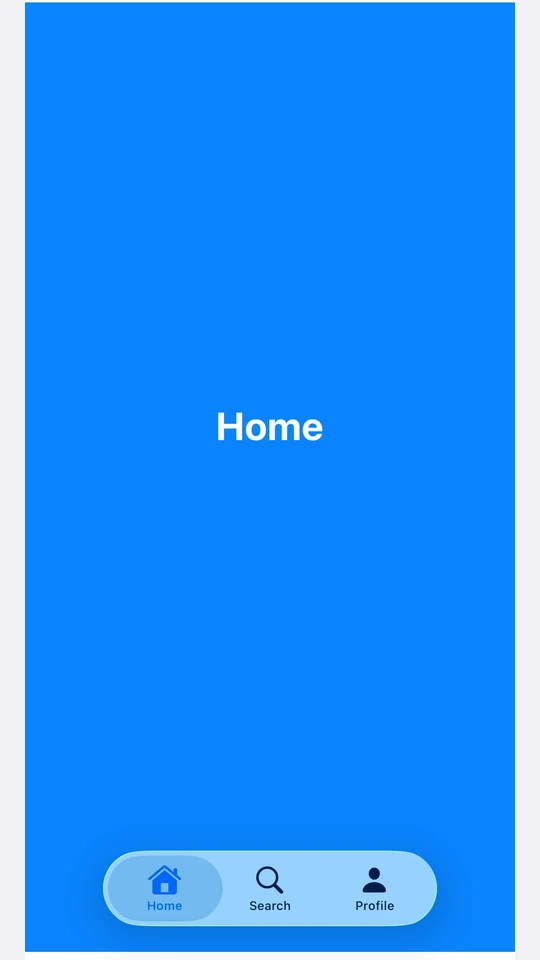
使用 tabViewStyle({ type: 'automatic' }) 来表示 SwiftUI 默认的标签栏。每个标签的 label 和 systemImage 填充栏项目。在标签上使用 badge
🌐 Use tabViewStyle({ type: 'automatic' }) for the SwiftUI default tab bar. Each tab's label and systemImage populate the bar item. Use the badge
import { useState } from 'react' ;
import {
Host ,
Spacer ,
TabView ,
Text ,
VStack ,
} from '@expo/ui/swift-ui' ;
import {
background,
badge,
font,
foregroundStyle,
frame,
tabViewStyle,
} from '@expo/ui/swift-ui/modifiers' ;
const fillFrame = frame ( {
maxWidth: Infinity ,
maxHeight: Infinity ,
} ) ;
export default function BottomTabsExample ( ) {
const [ selected, setSelected] = useState ( 'inbox' ) ;
return (
< Host style = { { flex: 1 } } >
< TabView selection = { selected} onSelectionChange = { setSelected} modifiers = { [ tabViewStyle ( { type: 'automatic' } ) ] } >
< TabView.Tab value = " inbox" label = " Inbox" systemImage = " tray.fill" modifiers = { [ badge ( '3' ) ] } >
< Page label = " Inbox" color = " #4F8DF6" />
</ TabView.Tab >
< TabView.Tab value = " sent" label = " Sent" systemImage = " paperplane.fill" >
< Page label = " Sent" color = " #34C759" />
</ TabView.Tab >
< TabView.Tab value = " drafts" label = " Drafts" systemImage = " square.and.pencil" >
< Page label = " Drafts" color = " #FF9F0A" />
</ TabView.Tab >
</ TabView >
</ Host > ) ;
}
function Page ( { label, color } : { label: string ; color: string } ) {
return (
< VStack alignment = " center" modifiers = { [ fillFrame, background ( color) ] } >
< Spacer />
< Text modifiers = { [
font ( { size: 28 , weight: 'bold' } ) ,
foregroundStyle ( '#FFFFFF' ) ,
] } >
{ label}
</ Text >
< Spacer />
</ VStack > ) ;
}
应用接口
🌐 API
import { TabView } from '@expo/ui/swift-ui' ;
Component Type: React.Element < TabViewProps >
A SwiftUI TabView. Pair with modifiers to choose the appearance:
tabViewStyle({ type: 'page' }) — swipeable pager.tabViewStyle({ type: 'automatic' }) — bottom tab bar.tabViewStyle({ type: 'sidebarAdaptable' }) — sidebar on iPad, tab bar on iPhone.
Use <TabView.Tab> children to define pages. Each tab is identified by its
value prop, which is used for selection.
For routed bottom-tab navigation across full-screen routes, prefer
expo-router/unstable-native-tabs.
The tab's content — rendered when this tab is selected.
Optional • Type: string
Text label shown in the tab bar or sidebar.
Optional • Type:
SFSymbols7_0 SF Symbol name shown alongside the label.
Type: string
Identifies this tab. Matched against the parent TabView's selection
and defaultSelection props.
Literal type: union
<TabView.Tab> elements defining the pages.
Acceptable values are: ReactElement< unknown, string | JSXElementConstructor< any > > | ReactElement[]
Optional • Type: string
The initially selected tab when the component is uncontrolled
(no selection prop). Ignored if selection is provided.
Optional • Type: ( selection: string ) => void
Called when the selected tab changes.
Optional • Type: string
The selected tab (controlled mode). Pair with onSelectionChange.
Pass defaultSelection instead to let the native view manage state.