This documentation is available as Markdown for AI agents and LLMs. See the full Markdown index or append .md to any documentation URL.
ContextMenu 用于显示上下文菜单的 SwiftUI ContextMenu 组件。
Recommended version:
~57.0.22
Expo UI ContextMenu 与官方 SwiftUI contextMenu API 相匹配,并在长按时显示菜单。对于单击菜单交互,请改用 Menu
安装
🌐 Installation
- npx expo install @expo/ui
- yarn expo install @expo/ui
- pnpm expo install @expo/ui
- bun expo install @expo/ui
If you are installing this in an existing React Native app , make sure to install expo in your project.
用法
🌐 Usage
基本上下文菜单
🌐 Basic context menu
BasicContextMenuExample.tsx import { Host , ContextMenu , Button , Text } from '@expo/ui/swift-ui' ;
export default function BasicContextMenuExample ( ) {
return (
< Host style = { { flex: 1 } } >
< ContextMenu >
< ContextMenu.Items >
< Button label = " Edit" onPress = { ( ) => console . log ( 'Edit' ) } />
< Button label = " Delete" role = " destructive" onPress = { ( ) => console . log ( 'Delete' ) } />
</ ContextMenu.Items >
< ContextMenu.Trigger >
< Text > Long press me </ Text >
</ ContextMenu.Trigger >
</ ContextMenu >
</ Host > ) ;
}
带系统图片的上下文菜单
🌐 Context menu with system images
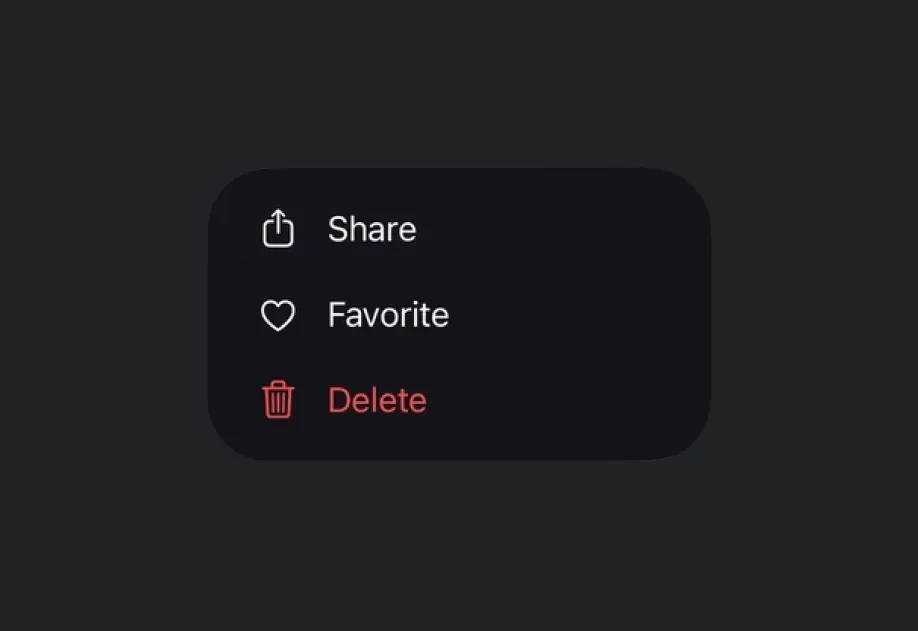
ContextMenuWithImagesExample.tsx import { Host , ContextMenu , Button , Text } from '@expo/ui/swift-ui' ;
export default function ContextMenuWithImagesExample ( ) {
return (
< Host style = { { flex: 1 } } >
< ContextMenu >
< ContextMenu.Items >
< Button label = " Share" systemImage = " square.and.arrow.up" onPress = { ( ) => console . log ( 'Share' ) } />
< Button label = " Favorite" systemImage = " heart" onPress = { ( ) => console . log ( 'Favorite' ) } />
< Button label = " Delete" systemImage = " trash" role = " destructive" onPress = { ( ) => console . log ( 'Delete' ) } />
</ ContextMenu.Items >
< ContextMenu.Trigger >
< Text > Long press me </ Text >
</ ContextMenu.Trigger >
</ ContextMenu >
</ Host > ) ;
}
带预览的上下文菜单
🌐 Context menu with preview
使用 ContextMenu.Preview 在菜单打开时显示自定义预览。
🌐 Use ContextMenu.Preview to show a custom preview above the menu when opened.
ContextMenuWithPreviewExample.tsx import { View , Text as RNText } from 'react-native' ;
import {
Host ,
ContextMenu ,
Button ,
RNHostView ,
Text ,
} from '@expo/ui/swift-ui' ;
export default function ContextMenuWithPreviewExample ( ) {
return (
< Host style = { { flex: 1 } } >
< ContextMenu >
< ContextMenu.Items >
< Button label = " Edit" onPress = { ( ) => console . log ( 'Edit' ) } />
< Button label = " Delete" role = " destructive" onPress = { ( ) => console . log ( 'Delete' ) } />
</ ContextMenu.Items >
< ContextMenu.Trigger >
< Text > Long press me </ Text >
</ ContextMenu.Trigger >
< ContextMenu.Preview >
< RNHostView matchContents >
< View style = { {
width: 200 ,
height: 100 ,
backgroundColor: '#f0f0f0' ,
padding: 16 ,
} } >
< RNText > Preview content </ RNText >
</ View >
</ RNHostView >
</ ContextMenu.Preview >
</ ContextMenu >
</ Host > ) ;
}
带选择器的上下文菜单
🌐 Context menu with picker
ContextMenuWithPickerExample.tsx import { useState } from 'react' ;
import {
Host ,
ContextMenu ,
Button ,
Text ,
Picker ,
} from '@expo/ui/swift-ui' ;
import { pickerStyle, tag } from '@expo/ui/swift-ui/modifiers' ;
export default function ContextMenuWithPickerExample ( ) {
const [ selectedIndex, setSelectedIndex] = useState <
number | undefined
> ( 0 ) ;
return (
< Host style = { { flex: 1 } } >
< ContextMenu >
< ContextMenu.Items >
< Button label = " Action" onPress = { ( ) => console . log ( 'Action' ) } />
< Picker label = " Size" modifiers = { [ pickerStyle ( 'menu' ) ] } selection = { selectedIndex} onSelectionChange = { setSelectedIndex} >
{ [ 'Small' , 'Medium' , 'Large' ] . map ( ( option, index) => (
< Text key = { index} modifiers = { [ tag ( index) ] } >
{ option}
</ Text > ) ) }
</ Picker >
</ ContextMenu.Items >
< ContextMenu.Trigger >
< Text > Long press me </ Text >
</ ContextMenu.Trigger >
</ ContextMenu >
</ Host > ) ;
}
带有部分的上下文菜单
🌐 Context menu with sections
使用 Section 和 Divider 组件来组织菜单项。
🌐 Use Section and Divider components to organize menu items.
ContextMenuWithSectionsExample.tsx import {
Host ,
ContextMenu ,
Button ,
Text ,
Section ,
Divider ,
} from '@expo/ui/swift-ui' ;
export default function ContextMenuWithSectionsExample ( ) {
return (
< Host style = { { flex: 1 } } >
< ContextMenu >
< ContextMenu.Items >
< Section title = " 操作" >
< Button label = " Edit" onPress = { ( ) => console . log ( 'Edit' ) } />
< Button label = " Duplicate" onPress = { ( ) => console . log ( 'Duplicate' ) } />
</ Section >
< Divider />
< Button label = " Delete" role = " destructive" onPress = { ( ) => console . log ( 'Delete' ) } />
</ ContextMenu.Items >
< ContextMenu.Trigger >
< Text > Long press me </ Text >
</ ContextMenu.Trigger >
</ ContextMenu >
</ Host > ) ;
}
已禁用的项目
🌐 Disabled items
在菜单 Button 上使用 disabled(true)
🌐 Use the disabled(true)Button to render it greyed-out and non-interactive.
DisabledContextMenuItemExample.tsx import { Host , ContextMenu , Button , Text } from '@expo/ui/swift-ui' ;
import { disabled } from '@expo/ui/swift-ui/modifiers' ;
export default function DisabledContextMenuItemExample ( ) {
return (
< Host style = { { flex: 1 } } >
< ContextMenu >
< ContextMenu.Items >
< Button label = " Edit" onPress = { ( ) => console . log ( 'Edit' ) } />
< Button label = " Locked" systemImage = " lock" modifiers = { [ disabled ( true ) ] } onPress = { ( ) => console . log ( 'This never fires' ) } />
</ ContextMenu.Items >
< ContextMenu.Trigger >
< Text > Long press me </ Text >
</ ContextMenu.Trigger >
</ ContextMenu >
</ Host > ) ;
}
可选择的项目(勾选项)
🌐 Selectable items (checkmarks)
当 isOn 为 true 时,ContextMenu.Items 内的 SwiftUI Toggle
🌐 A SwiftUI ToggleContextMenu.Items automatically renders as a row with a leading SF Symbol and a trailing checkmark when isOn is true.
CheckmarkContextMenuItemExample.tsx import { Host , ContextMenu , Toggle , Text } from '@expo/ui/swift-ui' ;
import { useState } from 'react' ;
export default function CheckmarkContextMenuItemExample ( ) {
const [ pinned, setPinned] = useState ( false ) ;
return (
< Host style = { { flex: 1 } } >
< ContextMenu >
< ContextMenu.Items >
< Toggle isOn = { pinned} label = " Pin" systemImage = " pin" onIsOnChange = { setPinned} />
</ ContextMenu.Items >
< ContextMenu.Trigger >
< Text > Long press me </ Text >
</ ContextMenu.Trigger >
</ ContextMenu >
</ Host > ) ;
}
嵌套上下文菜单
🌐 Nested context menus
使用嵌套的 ContextMenu 组件来创建子菜单。
🌐 Use nested ContextMenu components to create submenus.
NestedContextMenuExample.tsx import { Host , ContextMenu , Button , Text } from '@expo/ui/swift-ui' ;
export default function NestedContextMenuExample ( ) {
return (
< Host style = { { flex: 1 } } >
< ContextMenu >
< ContextMenu.Items >
< Button label = " Action" onPress = { ( ) => console . log ( 'Action' ) } />
< ContextMenu >
< ContextMenu.Items >
< Button label = " Sub Action 1" onPress = { ( ) => console . log ( 'Sub 1' ) } />
< Button label = " Sub Action 2" onPress = { ( ) => console . log ( 'Sub 2' ) } />
</ ContextMenu.Items >
< ContextMenu.Trigger >
< Button label = " More Options" />
</ ContextMenu.Trigger >
</ ContextMenu >
</ ContextMenu.Items >
< ContextMenu.Trigger >
< Text > Long press me </ Text >
</ ContextMenu.Trigger >
</ ContextMenu >
</ Host > ) ;
}
应用接口
🌐 API
import { ContextMenu } from '@expo/ui/swift-ui' ;
Components Type: React.Element < ContextMenuProps >
ContextMenu allows you to create a context menu, which can be used to provide additional options to the user.
Props of the ContextMenu component.
The contents of the context menu.
Should include ContextMenu.Trigger, ContextMenu.Items, and optionally ContextMenu.Preview.
Type: React.Element < {
children: ReactNode
} >
Items visible inside the context menu. It could be Section, Divider, Button, Toggle, Picker or even ContextMenu itself for nested menus. Remember to use components from the @expo/ui/swift-ui library.
Type: React.Element < {
children: ReactNode
} >
The component visible above the menu when it is opened.
Type: React.Element < {
children: ReactNode
} >
The component visible all the time that triggers the context menu when long-pressed.