This documentation is available as Markdown for AI agents and LLMs. See the full Markdown index or append .md to any documentation URL.

List

A SwiftUI List component for displaying scrollable lists of items.

iOS
tvOS
Included in Expo Go

Expo UI List matches the official SwiftUI List API and supports styling via the listStyle modifier, various row/section modifiers, as well as selection, reordering, and editing capabilities.

A List with Favorites and Recents sections, each row showing a colored SF Symbol icon and a labelA List with Favorites and Recents sections, each row showing a colored SF Symbol icon and a label

Installation

Terminal
- npx expo install @expo/ui
- yarn expo install @expo/ui
- pnpm expo install @expo/ui
- bun expo install @expo/ui

If you are installing this in an existing React Native app, make sure to install expo in your project.

Usage

Basic list

BasicListExample.tsx
import { Host, List, Text, Section } from '@expo/ui/swift-ui'; export default function BasicListExample() { return ( <Host style={{ flex: 1 }}> <List> <Section title="Fruits"> <Text>Apple</Text> <Text>Banana</Text> <Text>Orange</Text> </Section> <Section title="Vegetables"> <Text>Carrot</Text> <Text>Broccoli</Text> <Text>Spinach</Text> </Section> </List> </Host> ); }

List with labels and icons

ListWithLabelsExample.tsx
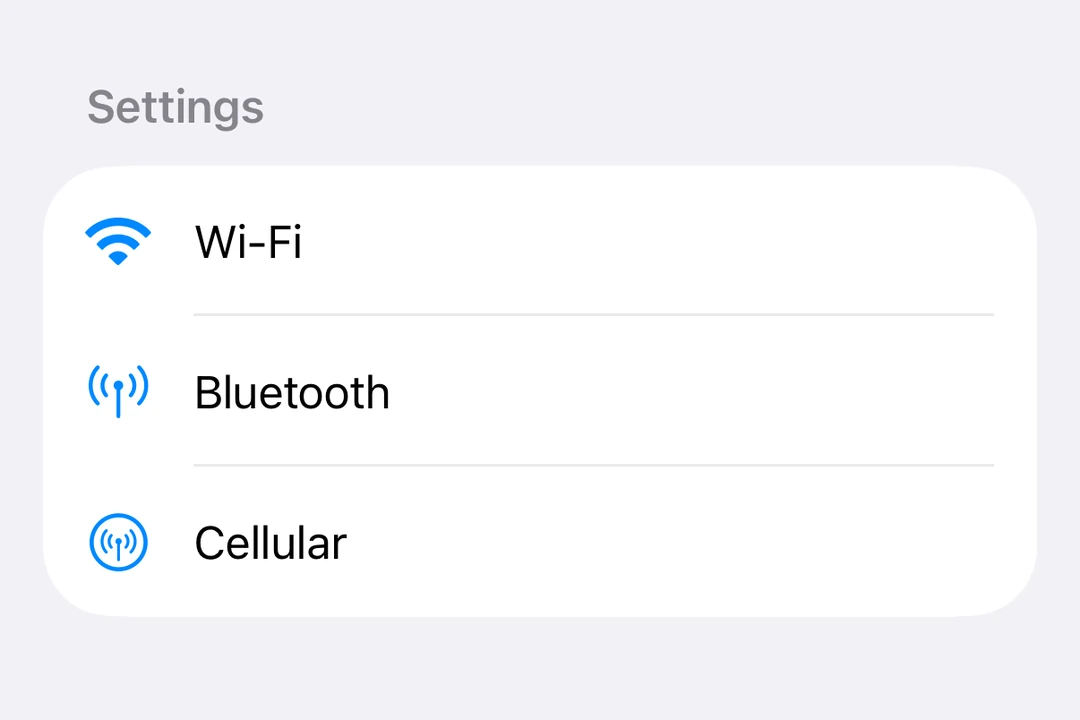
import { Host, List, Label, Section } from '@expo/ui/swift-ui'; export default function ListWithLabelsExample() { return ( <Host style={{ flex: 1 }}> <List> <Section title="Settings"> <Label title="Wi-Fi" systemImage="wifi" /> <Label title="Bluetooth" systemImage="antenna.radiowaves.left.and.right" /> <Label title="Cellular" systemImage="antenna.radiowaves.left.and.right.circle" /> </Section> </List> </Host> ); }

Large lists

Use List.ForEach to render rows from an array. Pass the items as data, a unique key for each item with keyExtractor, and a children function that returns the row for an item. List.ForEach renders only the rows near the visible area and reuses them while you scroll.

LargeListExample.tsx
import { Host, List, Text } from '@expo/ui/swift-ui'; type Contact = { id: string; name: string }; const contacts: Contact[] = Array.from( { length: 10000 }, (_, i) => ({ id: String(i), name: `Contact ${i + 1}`, }) ); function renderContact({ item }: { item: Contact }) { return <Text>{item.name}</Text>; } export default function LargeListExample() { return ( <Host style={{ flex: 1 }}> <List> <List.ForEach data={contacts} keyExtractor={contact => contact.id}> {renderContact} </List.ForEach> </List> </Host> ); }

Follow these rules when you render rows:

  • Define the children function outside the component, or wrap it in useCallback. Otherwise, the rows near the visible area render again each time the component renders.
  • A reused row keeps the local state (useState) of the item it showed before. Reset the state when the item changes, or keep the state outside the row.
  • A row that is not ready yet shows an empty placeholder. Set estimatedItemSize close to the height of your row content, excluding the List insets, in points.
  • Use overscanCount to prepare more rows above and below the visible rows.
  • To update the rows, pass a new data array. Do not change the array in place.
  • Set recycling={false} to render every row up front.

List styles

Use the listStyle modifier to change the list's appearance.

ListStylesExample.tsx
import { useState } from 'react'; import { Host, List, Text, Section, Picker, } from '@expo/ui/swift-ui'; import { listStyle, pickerStyle, tag, } from '@expo/ui/swift-ui/modifiers'; const styles = [ 'automatic', 'plain', 'inset', 'insetGrouped', 'grouped', 'sidebar', ] as const; export default function ListStylesExample() { const [styleIndex, setStyleIndex] = useState(0); return ( <Host style={{ flex: 1 }}> <List modifiers={[listStyle(styles[styleIndex])]}> <Section title="Style Picker"> <Picker label="List Style" selection={styleIndex} onSelectionChange={setStyleIndex} modifiers={[pickerStyle('menu')]}> {styles.map((style, index) => ( <Text key={style} modifiers={[tag(index)]}> {style} </Text> ))} </Picker> </Section> <Section title="Sample Items"> <Text>Item 1</Text> <Text>Item 2</Text> <Text>Item 3</Text> </Section> </List> </Host> ); }

Selection and edit mode

Enable selection, deletion, and reordering of list items using the List.ForEach compound component with onDelete and onMove props.

  • Use the environment modifier to enable edit mode
  • Use the keyExtractor prop to identify items
  • Use the selection prop to control selected items
  • Use moveDisabled and deleteDisabled modifiers to disable these actions on individual items
EditableListExample.tsx
import { useState } from 'react'; import { Host, List, Label, Section, Button, Toggle, } from '@expo/ui/swift-ui'; import { environment } from '@expo/ui/swift-ui/modifiers'; type Task = { id: string; title: string }; const INITIAL_TASKS: Task[] = [ { id: '1', title: 'Task 1' }, { id: '2', title: 'Task 2' }, { id: '3', title: 'Task 3' }, { id: '4', title: 'Task 4' }, ]; function renderTask({ item }: { item: Task }) { return <Label title={item.title} />; } export default function EditableListExample() { const [tasks, setTasks] = useState<Task[]>(INITIAL_TASKS); const [selectedIds, setSelectedIds] = useState<string[]>([]); const [editMode, setEditMode] = useState(false); const handleDelete = (indices: number[]) => { setTasks(prev => prev.filter((_, i) => !indices.includes(i))); }; const handleMove = ( sourceIndices: number[], destination: number ) => { setTasks(prev => { const newTasks = [...prev]; const [removed] = newTasks.splice(sourceIndices[0], 1); const adjustedDest = sourceIndices[0] < destination ? destination - 1 : destination; newTasks.splice(adjustedDest, 0, removed); return newTasks; }); }; return ( <Host style={{ flex: 1 }}> <List selection={selectedIds} onSelectionChange={ids => setSelectedIds(ids.map(String))} modifiers={[ environment('editMode', editMode ? 'active' : 'inactive'), ]}> <Section title="Settings"> <Toggle label="Edit mode" isOn={editMode} onIsOnChange={setEditMode} /> </Section> <Section title="Tasks"> <List.ForEach data={tasks} keyExtractor={task => task.id} onDelete={handleDelete} onMove={handleMove}> {renderTask} </List.ForEach> </Section> </List> </Host> ); }

Pull to refresh

Use the refreshable modifier to enable pull-to-refresh functionality.

RefreshableListExample.tsx
import { useState } from 'react'; import { Host, List, Text, Section } from '@expo/ui/swift-ui'; import { refreshable } from '@expo/ui/swift-ui/modifiers'; export default function RefreshableListExample() { const [lastRefresh, setLastRefresh] = useState<Date | null>(null); const handleRefresh = async () => { // Simulate async data fetching await new Promise(resolve => setTimeout(resolve, 1500)); setLastRefresh(new Date()); }; return ( <Host style={{ flex: 1 }}> <List modifiers={[refreshable(handleRefresh)]}> <Section title="Data"> <Text>Pull down to refresh</Text> {lastRefresh && ( <Text> Last refresh: {lastRefresh.toLocaleTimeString()} </Text> )} </Section> </List> </Host> ); }

Row styling

Use listRowBackground, listRowSeparator, listRowSeparatorTint, and listRowInsets modifiers to customize individual rows. Use alignmentGuide with the listRowSeparatorLeading guide to set where a row separator starts.

RowStylingExample.tsx
import { Host, List, Text, Section } from '@expo/ui/swift-ui'; import { alignmentGuide, listRowBackground, listRowSeparator, listRowSeparatorTint, listRowInsets, } from '@expo/ui/swift-ui/modifiers'; export default function RowStylingExample() { return ( <Host style={{ flex: 1 }}> <List> <Section title="Styled Rows"> <Text modifiers={[listRowBackground('blue')]}> Blue background </Text> <Text modifiers={[listRowSeparator('hidden')]}> Hidden separator </Text> <Text modifiers={[listRowSeparatorTint('red')]}> Red separator </Text> <Text modifiers={[listRowInsets({ leading: 40 })]}> Extra leading inset </Text> <Text modifiers={[ listRowInsets({ leading: 0, trailing: 0 }), ]}> No horizontal insets </Text> <Text modifiers={[ alignmentGuide('listRowSeparatorLeading', 32), ]}> Separator starts 32 points in </Text> </Section> </List> </Host> ); }

Keyboard dismiss behavior

Use the scrollDismissesKeyboard modifier to control how the keyboard is dismissed when scrolling.

KeyboardDismissExample.tsx
import { Host, List, Section, TextField } from '@expo/ui/swift-ui'; import { scrollDismissesKeyboard } from '@expo/ui/swift-ui/modifiers'; export default function KeyboardDismissExample() { return ( <Host style={{ flex: 1 }}> <List modifiers={[scrollDismissesKeyboard('interactively')]}> <Section title="Form"> <TextField placeholder="Name" /> <TextField placeholder="Email" /> <TextField placeholder="Phone" /> </Section> </List> </Host> ); }

Header prominence

Use the headerProminence modifier to adjust the visual prominence of section headers.

HeaderProminenceExample.tsx
import { Host, List, Text, Section } from '@expo/ui/swift-ui'; import { headerProminence } from '@expo/ui/swift-ui/modifiers'; export default function HeaderProminenceExample() { return ( <Host style={{ flex: 1 }}> <List modifiers={[headerProminence('increased')]}> <Section title="Important Section"> <Text>This section has increased header prominence</Text> </Section> <Section title="Another Section"> <Text>Headers are more prominent</Text> </Section> </List> </Host> ); }

API

import { List } from '@expo/ui/swift-ui';

No API data file found, sorry!