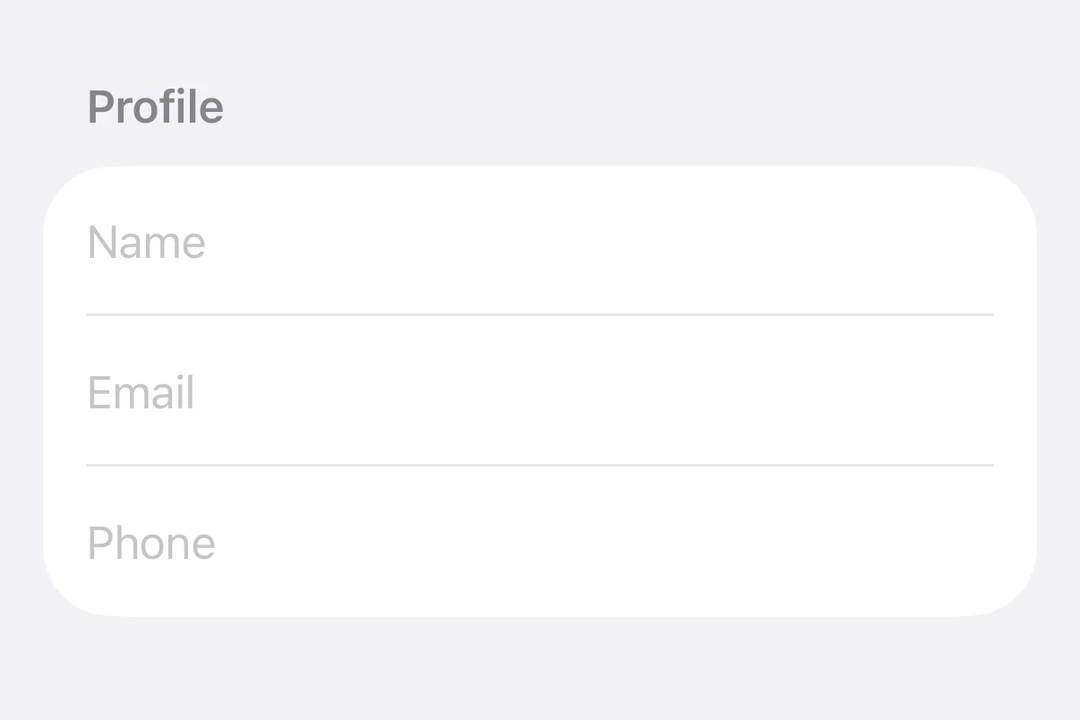
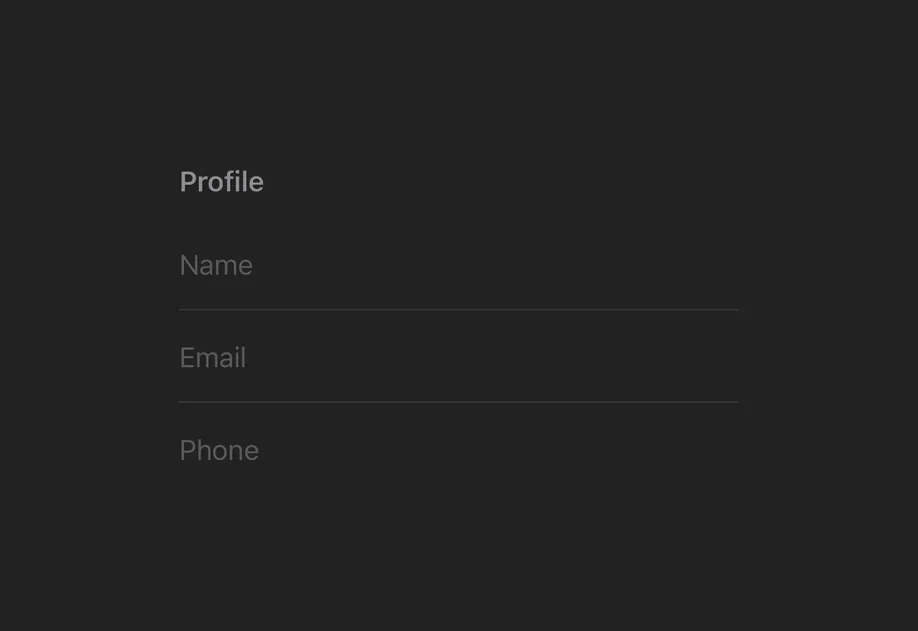
Expo UI TextField 与官方 SwiftUI TextField API 相匹配,支持单行和多行输入、键盘配置、提交处理,以及用于编程控制的命令式 ref。
🌐 Expo UI TextField matches the official SwiftUI TextField API and supports single-line and multiline input, keyboard configuration, submit handling, and an imperative ref for programmatic control.
🌐 Bind a useNativeState observable to text. The field tracks the user's input on its own, and you read the current value from textState.value.
BasicTextFieldExample.tsx
import{Host,TextField, useNativeState }from'@expo/ui/swift-ui';exportdefaultfunctionBasicTextFieldExample(){const textState =useNativeState('');// A text field stretches to the width it is given, so give the host a size.return(<Hoststyle={{ flex:1}}><TextFieldplaceholder="Username"text={textState}/></Host>);}
🌐 Pass an onTextChange worklet to transform or validate input and write the result back to the useNativeState observable state. The example below uppercases the text as it is typed.
🌐 Set axis="vertical" to allow the text field to expand vertically. Use the lineLimit modifier to control the visible line count. Give the Host an explicit size so the field has a width to expand within.
MultilineTextFieldExample.tsx
import{Host,TextField, useNativeState }from'@expo/ui/swift-ui';import{ lineLimit, fixedSize }from'@expo/ui/swift-ui/modifiers';exportdefaultfunctionMultilineTextFieldExample(){const textState =useNativeState('');return(<Hoststyle={{ flex:1}}><TextFieldaxis="vertical"text={textState}placeholder="Tell us about yourself..."modifiers={[lineLimit(5),fixedSize({ horizontal:false, vertical:true}),]}/></Host>);}
🌐 When onTextChange is marked with the 'worklet' directive, it runs synchronously on the UI thread, so writes to useNativeState observables inside the callback take effect before the next frame. There is no flicker between the typed text and the masked text. The example below masks a phone number as the user types and writes both text and selection from the worklet to keep the cursor at the end of the formatted value.