This documentation is available as Markdown for AI agents and LLMs. See the full Markdown index or append .md to any documentation URL.
按钮
用于显示原生 Material3 按钮的 Jetpack Compose 按钮组件。
信息 有关跨平台使用,请参阅通用
Button—— 它会根据平台呈现相应的原生组件。
Expo UI 提供五种按钮组件,它们与官方 Jetpack Compose Button API 相匹配:Button(实心),FilledTonalButton,OutlinedButton,ElevatedButton 和 TextButton。所有变体共享相同的属性,并接受可组合子作为内容。
🌐 Expo UI provides five button components that match the official Jetpack Compose Button API: Button (filled), FilledTonalButton, OutlinedButton, ElevatedButton, and TextButton. All variants share the same props and accept composable children for content.
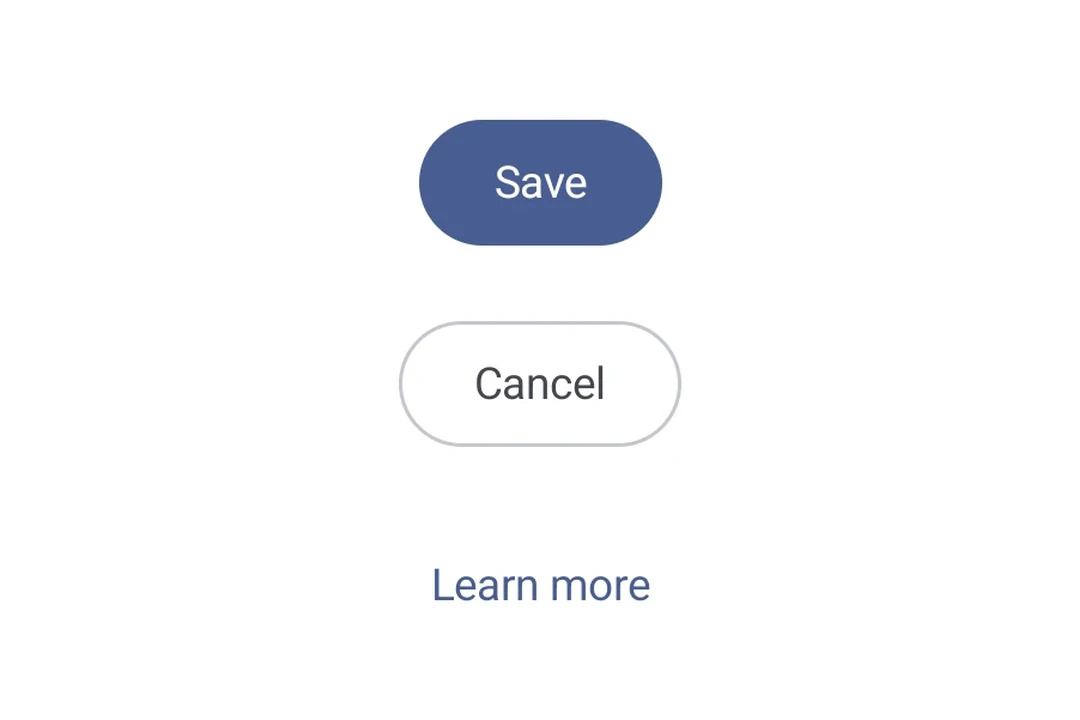
| 类型 | 外观 | 目的 |
|---|---|---|
| 实心按钮 | 实色背景,文本有对比色。 | 主要用于高强调动作的按钮,如“提交”和“保存”。 |
| 填充色调按钮 | 背景颜色变化以匹配表面。 | 同样用于主要或重要操作。填充色调按钮提供更强的视觉重量,适合“加入购物车”和“登录”等功能。 |
| 浮起按钮 | 通过阴影高亮。 | 功能类似于色调按钮。增加浮起程度可以使按钮显得更加突出。 |
| 描边按钮 | 只有边框,没有填充。 | 中等强调的按钮,包含重要但非主要的操作。它们与其他按钮搭配使用,表示替代的、次要的动作,如“取消”或“返回”。 |
| 文本按钮 | 仅显示文本,无背景或边框。 | 低强调按钮,适用于不太关键的操作,如导航链接,或次要功能,如“了解更多”或“查看详情”。 |
安装
🌐 Installation
- npx expo install @expo/uiIf you are installing this in an existing React Native app, make sure to install expo in your project.
用法
🌐 Usage
基础按钮
🌐 Basic button
实心按钮是默认的、高强调的主要操作按钮。
🌐 A filled button is the default, high-emphasis button for primary actions.
import { Host, Button, Text } from '@expo/ui/jetpack-compose';

export default function BasicButtonExample() {
  return (
    <Host matchContents>
      <Button onClick={() => alert('Pressed!')}>
        <Text>Press me</Text>
      </Button>
    </Host>
  );
}
按钮变体
🌐 Button variants
使用不同的按钮组件来传达不同程度的强调。
🌐 Use different button components to convey varying levels of emphasis.
import {
  Host,
  Button,
  FilledTonalButton,
  OutlinedButton,
  ElevatedButton,
  TextButton,
  Column,
  Text,
} from '@expo/ui/jetpack-compose';

export default function ButtonVariantsExample() {
  return (
    <Host matchContents>
      <Column verticalArrangement={{ spacedBy: 8 }}>
        <Button onClick={() => {}}>
          <Text>Filled</Text>
        </Button>
        <FilledTonalButton onClick={() => {}}>
          <Text>Filled Tonal</Text>
        </FilledTonalButton>
        <OutlinedButton onClick={() => {}}>
          <Text>Outlined</Text>
        </OutlinedButton>
        <ElevatedButton onClick={() => {}}>
          <Text>Elevated</Text>
        </ElevatedButton>
        <TextButton onClick={() => {}}>
          <Text>Text</Text>
        </TextButton>
      </Column>
    </Host>
  );
}
带图标的按钮
🌐 Button with icons
由于按钮可以接受可组合的子元素,你可以使用 Icon 组件添加前置和后置图标。这遵循 带图标的 Material 3 按钮 模式(官方示例),使用 18dp 图标大小,图标与标签之间间距为 8dp。
🌐 Since buttons accept composable children, you can add leading and trailing icons using the Icon component. This follows the Material 3 buttons with icon pattern (official sample), use 18dp icon size, 8dp spacing between the icon and label.
import {
  Host,
  Button,
  OutlinedButton,
  FilledTonalButton,
  Icon,
  Spacer,
  Text,
} from '@expo/ui/jetpack-compose';
import { width } from '@expo/ui/jetpack-compose/modifiers';

const addIcon = require('./assets/add.png');
const sendIcon = require('./assets/send.png');

export default function ButtonWithIconsExample() {
  return (
    <Host matchContents>
      {/* Leading icon */}
      <Button onClick={() => {}}>
        <Icon source={addIcon} size={18} tint="#FFFFFF" />
        <Spacer modifiers={[width(8)]} />
        <Text>Add Item</Text>
      </Button>

      {/* Trailing icon */}
      <OutlinedButton onClick={() => {}}>
        <Text>Send</Text>
        <Spacer modifiers={[width(8)]} />
        <Icon source={sendIcon} size={18} />
      </OutlinedButton>

      {/* Both leading and trailing icons */}
      <FilledTonalButton onClick={() => {}}>
        <Icon source={addIcon} size={18} />
        <Spacer modifiers={[width(8)]} />
        <Text>Create & Send</Text>
        <Spacer modifiers={[width(8)]} />
        <Icon source={sendIcon} size={18} />
      </FilledTonalButton>
    </Host>
  );
}
自定义颜色
🌐 Custom colors
使用 colors 属性覆盖容器和内容颜色。
🌐 Override container and content colors using the colors prop.
import { Host, Button, Text } from '@expo/ui/jetpack-compose';

export default function CustomColorsExample() {
  return (
    <Host matchContents>
      <Button onClick={() => {}} colors={{ containerColor: '#6200EE', contentColor: '#FFFFFF' }}>
        <Text>Purple Button</Text>
      </Button>
    </Host>
  );
}
自定义形状
🌐 Custom shape
import { Host, Button, Shape, Text } from '@expo/ui/jetpack-compose';

export default function CustomShapeExample() {
  return (
    <Host matchContents>
      <Button
        onClick={() => {}}
        shape={Shape.RoundedCorner({ cornerRadii: { topStart: 16, bottomEnd: 16 } })}>
        <Text>Custom Shape</Text>
      </Button>
    </Host>
  );
}
应用接口
🌐 API
import {
  Button,
  FilledTonalButton,
  OutlinedButton,
  ElevatedButton,
  TextButton,
} from '@expo/ui/jetpack-compose';
Components
Type: React.Element<ButtonProps>
A filled button component.
ButtonContentPaddingThe padding between the button container and its content. Use this to adjust internal spacing, for example when adding a leading icon
boolean • Default: trueWhether the button is enabled for user interaction.
Types
Colors for button elements.
| Property | Type | Description |
|---|---|---|
| containerColor(optional) | ColorValue | - |
| contentColor(optional) | ColorValue | - |
| disabledContainerColor(optional) | ColorValue | - |
| disabledContentColor(optional) | ColorValue | - |