This documentation is available as Markdown for AI agents and LLMs. See the full Markdown index or append .md to any documentation URL.
TextField
用于原生 Material3 文本输入的 Jetpack Compose TextField 组件。
信息 有关跨平台使用,请参阅通用
TextInput—— 它会根据平台呈现相应的原生组件。
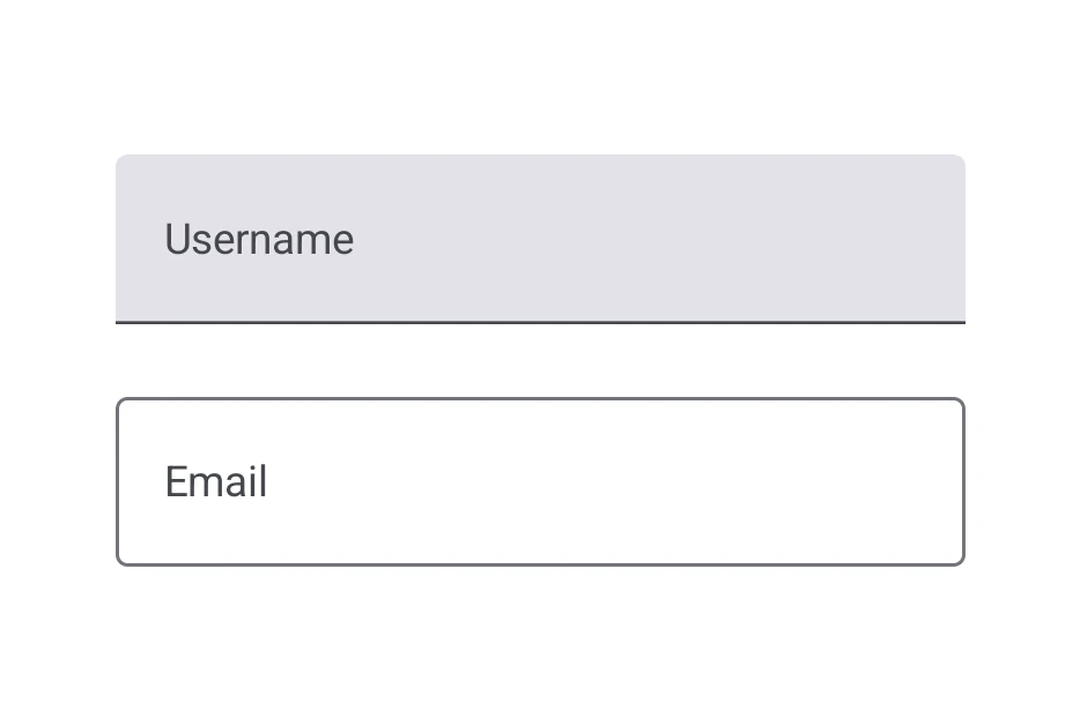
Expo UI 提供了三种文本字段组件,匹配官方 Jetpack Compose TextField API:TextField(填充型)、OutlinedTextField(带边框)和BasicTextField(无样式)。Material 变体 TextField 和 OutlinedTextField 拥有相同的属性,并支持用于标签、占位符、图标、前缀、后缀和辅助文本的可组合插槽子组件。BasicTextField 没有 Material 外观,所以你需要提供自己的装饰。
🌐 Expo UI provides three text field components that match the official Jetpack Compose TextField API: TextField (filled), OutlinedTextField (outlined border), and BasicTextField (unstyled). The Material variants TextField and OutlinedTextField share the same props and support composable slot children for label, placeholder, icons, prefix, suffix, and supporting text. BasicTextField has no Material chrome, so you supply your own decoration.
| 类型 | 外观 | 目的 |
|---|---|---|
| 填充型 | 实心背景,底部有指示线。 | 默认文本输入样式,遵循 Material3 设计。适用于大多数表单和输入字段。 |
| 描边型 | 透明背景,带边框轮廓。 | 提供明显视觉边界的替代样式。当填充字段与背景融为一体时使用。 |
| 基本型 | 无容器、指示器或内边距,仅显示可编辑文本。 | 完全自定义样式的输入框。自行设计样式,并通过 DecorationBox 添加装饰。 |
安装
🌐 Installation
- npx expo install @expo/uiIf you are installing this in an existing React Native app, make sure to install expo in your project.
用法
🌐 Usage
未受控的文本字段
🌐 Uncontrolled text field
将 useNativeState 可观察对象绑定到 value。该字段会自行跟踪用户输入,你可以从 text.value 读取当前值。这里显示的填充样式是默认的 Material3 文本输入样式。
🌐 Bind a useNativeState observable to value. The field tracks the user's input on its own, and you read the current value from text.value. The filled style shown here is the default Material3 text input.
import { Host, TextField, Text, useNativeState } from '@expo/ui/jetpack-compose';

export default function UncontrolledTextFieldExample() {
  const text = useNativeState('');

  return (
    <Host matchContents>
      <TextField value={text}>
        <TextField.Label>
          <Text>Username</Text>
        </TextField.Label>
      </TextField>
    </Host>
  );
}
受控文本字段
🌐 Controlled text field
将 useNativeState 可观察对象作为 value 传递,并使用 onValueChange 工作单元在写回之前转换或验证输入。下面的示例会在输入时将文本转换为大写。
🌐 Pass a useNativeState observable as value and an onValueChange worklet to transform or validate input before writing it back. The example below uppercases the text as it is typed.
注意: Worklets 需要安装
react-native-worklets。
import { Host, TextField, Text, useNativeState } from '@expo/ui/jetpack-compose';
import { useCallback } from 'react';

export default function ControlledTextFieldExample() {
  const text = useNativeState('');

  const handleValueChange = useCallback(
    (value: string) => {
      'worklet';
      text.value = value.toUpperCase();
    },
    [text]
  );

  return (
    <Host matchContents>
      <TextField value={text} onValueChange={handleValueChange}>
        <TextField.Label>
          <Text>Name</Text>
        </TextField.Label>
      </TextField>
    </Host>
  );
}
轮廓文本字段
🌐 Outlined text field
对于有边框轮廓而非填充背景的文本字段,请使用 OutlinedTextField。
🌐 Use OutlinedTextField for a text field with a border outline instead of a filled background.
import { Host, OutlinedTextField, Text, useNativeState } from '@expo/ui/jetpack-compose';

export default function OutlinedTextFieldExample() {
  const text = useNativeState('');

  return (
    <Host matchContents>
      <OutlinedTextField value={text}>
        <OutlinedTextField.Label>
          <Text>Email</Text>
        </OutlinedTextField.Label>
        <OutlinedTextField.Placeholder>
          <Text>you@example.com</Text>
        </OutlinedTextField.Placeholder>
      </OutlinedTextField>
    </Host>
  );
}
基本文本字段
🌐 Basic text field
BasicTextField 是未加样式的 Compose 原语,没有容器、指示器或内边距。使用 modifiers 自行设置样式,并通过 DecorationBox 提供装饰,将 InnerTextField 放置在可编辑文本应该呈现的位置。将占位符内容封装在 Placeholder 中,以便仅在字段为空时显示,由字段的文本原生切换。
import { Host, BasicTextField, Box, Text, useNativeState } from '@expo/ui/jetpack-compose';
import {
  background,
  clip,
  fillMaxWidth,
  padding,
  Shapes,
} from '@expo/ui/jetpack-compose/modifiers';

export default function BasicTextFieldExample() {
  const value = useNativeState('');

  return (
    <Host matchContents>
      <BasicTextField
        cursorColor="#7c3aed"
        value={value}
        modifiers={[
          fillMaxWidth(),
          clip(Shapes.RoundedCorner(12)),
          background('#f3f4f6'),
          padding(12, 10, 12, 10),
        ]}>
        <BasicTextField.DecorationBox>
          <Box>
            <BasicTextField.Placeholder>
              <Text color="#9ca3af">Search…</Text>
            </BasicTextField.Placeholder>
            <BasicTextField.InnerTextField />
          </Box>
        </BasicTextField.DecorationBox>
      </BasicTextField>
    </Host>
  );
}
插槽
🌐 Slots
TextField 和 OutlinedTextField 都支持 7 个可组合的插槽,这些插槽与 Compose API 匹配:Label、Placeholder、LeadingIcon、TrailingIcon、Prefix、Suffix 和 SupportingText。
🌐 Both TextField and OutlinedTextField support 7 composable slots that match the Compose API: Label, Placeholder, LeadingIcon, TrailingIcon, Prefix, Suffix, and SupportingText.
import { Host, TextField, Text, useNativeState } from '@expo/ui/jetpack-compose';

export default function TextFieldSlotsExample() {
  const text = useNativeState('');

  return (
    <Host matchContents>
      <TextField value={text}>
        <TextField.Label>
          <Text>Price</Text>
        </TextField.Label>
        <TextField.Placeholder>
          <Text>0.00</Text>
        </TextField.Placeholder>
        <TextField.LeadingIcon>
          <Text>💰</Text>
        </TextField.LeadingIcon>
        <TextField.Prefix>
          <Text>$</Text>
        </TextField.Prefix>
        <TextField.Suffix>
          <Text>USD</Text>
        </TextField.Suffix>
        <TextField.SupportingText>
          <Text>Enter the amount</Text>
        </TextField.SupportingText>
      </TextField>
    </Host>
  );
}
键盘选项
🌐 Keyboard options
使用 keyboardOptions 属性来配置键盘类型、大写、自动纠正和输入法操作。
🌐 Use the keyboardOptions prop to configure the keyboard type, capitalization, auto-correct, and IME action.
import { Host, TextField, Text, useNativeState } from '@expo/ui/jetpack-compose';

export default function KeyboardOptionsExample() {
  const text = useNativeState('');

  return (
    <Host matchContents>
      <TextField
        value={text}
        singleLine
        keyboardOptions={{
          keyboardType: 'email',
          capitalization: 'none',
          autoCorrectEnabled: false,
          imeAction: 'done',
        }}>
        <TextField.Label>
          <Text>Email</Text>
        </TextField.Label>
      </TextField>
    </Host>
  );
}
键盘操作
🌐 Keyboard actions
使用 keyboardActions 属性来处理 IME 操作按钮的按下事件。触发的回调取决于在 keyboardOptions 中设置的 imeAction。每个回调都会接收当前的文本值。
🌐 Use the keyboardActions prop to handle IME action button presses. The triggered callback depends on the imeAction set in keyboardOptions. Each callback receives the current text value.
import { Host, TextField, Text, useNativeState } from '@expo/ui/jetpack-compose';

export default function KeyboardActionsExample() {
  const text = useNativeState('');

  return (
    <Host matchContents>
      <TextField
        value={text}
        singleLine
        keyboardOptions={{ imeAction: 'search' }}
        keyboardActions={{
          onSearch: value => console.log('Searched:', value),
        }}>
        <TextField.Label>
          <Text>Search</Text>
        </TextField.Label>
      </TextField>
    </Host>
  );
}
命令参考
🌐 Imperative ref
使用引用可以以命令式方式设置文本、清除字段、更改选择或移动焦点。
🌐 Use a ref to imperatively set text, clear the field, change the selection, or move focus.
import { useRef } from 'react';
import {
  Host,
  TextField,
  TextFieldRef,
  Button,
  Row,
  Text,
  Column,
  useNativeState,
} from '@expo/ui/jetpack-compose';
import { padding } from '@expo/ui/jetpack-compose/modifiers';

export default function ImperativeRefExample() {
  const ref = useRef<TextFieldRef>(null);
  const text = useNativeState('');

  return (
    <Host matchContents>
      <Column>
        <TextField ref={ref} value={text} singleLine>
          <TextField.Label>
            <Text>Name</Text>
          </TextField.Label>
        </TextField>
        <Row horizontalArrangement={{ spacedBy: 8 }} modifiers={[padding(8, 0, 0, 0)]}>
          <Button onClick={() => ref.current?.setText('Hello world')}>
            <Text>Set text</Text>
          </Button>
          <Button onClick={() => ref.current?.clear()}>
            <Text>Clear</Text>
          </Button>
          <Button onClick={() => ref.current?.setSelection(0, 5)}>
            <Text>Select first word</Text>
          </Button>
        </Row>
        <Row horizontalArrangement={{ spacedBy: 8 }} modifiers={[padding(8, 0, 0, 0)]}>
          <Button onClick={() => ref.current?.focus()}>
            <Text>Focus</Text>
          </Button>
          <Button onClick={() => ref.current?.blur()}>
            <Text>Blur</Text>
          </Button>
        </Row>
      </Column>
    </Host>
  );
}
Worklet 文本遮罩
🌐 Worklet text masking
当 onValueChange 被 'worklet' 指令标记时,它会在 UI 线程上同步运行,因此回调内对 useNativeState 可观察对象的写入会在下一帧之前生效。输入的文本和屏蔽的文本之间不会闪烁。下面的例子在用户输入时屏蔽电话号码,并从 worklet 中写入 value 和 selection,以保持光标在格式化值的末尾。
🌐 When onValueChange is marked with the 'worklet' directive, it runs synchronously on the UI thread, so writes to useNativeState observables inside the callback take effect before the next frame. There is no flicker between the typed text and the masked text. The example below masks a phone number as the user types and writes both value and selection from the worklet to keep the cursor at the end of the formatted value.
注意: Worklets 需要安装
react-native-worklets。
import { Host, TextField, Text, useNativeState } from '@expo/ui/jetpack-compose';
import { fillMaxWidth } from '@expo/ui/jetpack-compose/modifiers';
import { useEffectEvent } from 'react';

export default function WorkletPhoneMaskExample() {
  const phone = useNativeState('');
  const selection = useNativeState({ start: 0, end: 0 });

  const handleValueChange = useEffectEvent((v: string) => {
    'worklet';
    const digits = v.replace(/\D/g, '').slice(0, 10);
    let formatted = digits;
    if (digits.length > 6) {
      formatted = `(${digits.slice(0, 3)}) ${digits.slice(3, 6)}-${digits.slice(6)}`;
    } else if (digits.length > 3) {
      formatted = `(${digits.slice(0, 3)}) ${digits.slice(3)}`;
    }
    if (formatted !== v) {
      phone.value = formatted;
      // Snaps to end for demo. Real masks need smarter cursor handling.
      selection.value = { start: formatted.length, end: formatted.length };
    }
  });

  return (
    <Host matchContents>
      <TextField
        value={phone}
        selection={selection}
        keyboardOptions={{ keyboardType: 'phone' }}
        modifiers={[fillMaxWidth()]}
        onValueChange={handleValueChange}>
        <TextField.Placeholder>
          <Text>(555) 123-4567</Text>
        </TextField.Placeholder>
      </TextField>
    </Host>
  );
}
应用接口
🌐 API
import { TextField, OutlinedTextField, BasicTextField } from '@expo/ui/jetpack-compose';
Components
Type: React.Element<BasicTextFieldProps>
A bare, unstyled Compose BasicTextField with no Material decoration.
Props for BasicTextField. Mirrors Compose's BasicTextField: a bare,
unstyled text field with no Material chrome (no container, indicator, or
built-in padding). Shares CommonTextFieldProperties with TextField and
OutlinedTextField; use BasicTextField.DecorationBox to add your own
decoration.
ColorValueColor of the text cursor. Maps to Compose's cursorBrush via
SolidColor(color). Defaults to the theme's primary color
(MaterialTheme.colorScheme.primary) so it stays visible in light and dark.
Type: React.Element<OutlinedTextFieldProps>
A Material3 OutlinedTextField with a transparent background and border outline.
Props shared by every Compose text field variant — TextField,
OutlinedTextField, and BasicTextField. The Material variants add their
own decoration props (isError, shape, colors, slot children);
BasicTextField adds cursorColor.
TextFieldColorsShapeJSXElementShape used for the field's container outline/fill. Use the helpers from
Shape (for example, <Shape.Pill /> or <Shape.RoundedCorner cornerRadii={...} />).
Defaults to the Material OutlinedTextFieldDefaults.shape/TextFieldDefaults.shape.
Type: React.Element<TextFieldProps>
A Material3 TextField.
Props shared by every Compose text field variant — TextField,
OutlinedTextField, and BasicTextField. The Material variants add their
own decoration props (isError, shape, colors, slot children);
BasicTextField adds cursorColor.
TextFieldColorsShapeJSXElementShape used for the field's container outline/fill. Use the helpers from
Shape (for example, <Shape.Pill /> or <Shape.RoundedCorner cornerRadii={...} />).
Defaults to the Material OutlinedTextFieldDefaults.shape/TextFieldDefaults.shape.
Types
Type: TextFieldRef
Imperative methods for BasicTextField. Identical to TextFieldRef.
Props shared by every Compose text field variant — TextField,
OutlinedTextField, and BasicTextField. The Material variants add their
own decoration props (isError, shape, colors, slot children);
BasicTextField adds cursorColor.
| Property | Type | Description |
|---|---|---|
| autoFocus(optional) | boolean | If true, the text field will be focused automatically when mounted. Default: false |
| children(optional) | ReactNode | Slot children that configure the field's decoration. |
| enabled(optional) | boolean | Default: true |
| keyboardActions(optional) | TextFieldKeyboardActions | - |
| keyboardOptions(optional) | TextFieldKeyboardOptions | - |
| maxLength(optional) | number | Maximum number of characters allowed. Truncates natively as the user types. |
| maxLines(optional) | number | - |
| minLines(optional) | number | - |
| modifiers(optional) | ModifierConfig[] | - |
| onFocusChanged(optional) | (focused: boolean) => void | A callback triggered when the field gains or loses focus. |
| onSelectionChange(optional) | (selection: {
end: number,
start: number
}) => void | Called when the selection range changes. |
| onValueChange(optional) | (value: string) => void | Fires whenever the text value changes. If marked with the |
| readOnly(optional) | boolean | Default: false |
| ref(optional) | Ref<TextFieldRef> | - |
| selection(optional) | ObservableState<{
end: number,
start: number
}> | Observable state holding the current selection range. Create with
|
| singleLine(optional) | boolean | Default: false |
| textSelectionColors(optional) | {
backgroundColor: ColorValue,
handleColor: ColorValue
} | Selection-related colors. Maps to Compose's |
| textStyle(optional) | TextFieldTextStyle | Text styling for the field's content. Maps to Compose's |
| value(optional) | ObservableState<string> | An observable state that holds the current text value. Create one with
|
| visualTransformation(optional) | 'password' | 'none' | Display-time text transformation. |
Observable state shared between JavaScript and native views (Jetpack Compose on Android and SwiftUI on iOS).
Type: SharedObject extended by:
| Property | Type | Description |
|---|---|---|
| onChange | [listener] | null | A single listener invoked on the native UI runtime whenever the value changes
(after iOS The callback must be a worklet so it can run synchronously on the UI thread.
Attach it inside Example
|
| value | T | The current value. Writes from a UI worklet are synchronous and immediately readable. Writes from the JS thread are scheduled to the UI thread asynchronously, the new value is not readable until the update has been applied. Prefer writing from a worklet when you need synchronous updates |
| get | () => T | Reads the current value. A React Compiler compliant alternative to reading |
| set | (value: T) => void | Writes a new value. A React Compiler-compliant alternative to assigning |
Literal Type: string
Acceptable values are: 'none' | 'characters' | 'words' | 'sentences'
Colors for TextField and OutlinedTextField.
Maps to TextFieldColors in Compose, shared by both variants.
| Property | Type | Description |
|---|---|---|
| cursorColor(optional) | ColorValue | - |
| disabledContainerColor(optional) | ColorValue | - |
| disabledIndicatorColor(optional) | ColorValue | - |
| disabledLabelColor(optional) | ColorValue | - |
| disabledLeadingIconColor(optional) | ColorValue | - |
| disabledPlaceholderColor(optional) | ColorValue | - |
| disabledPrefixColor(optional) | ColorValue | - |
| disabledSuffixColor(optional) | ColorValue | - |
| disabledSupportingTextColor(optional) | ColorValue | - |
| disabledTextColor(optional) | ColorValue | - |
| disabledTrailingIconColor(optional) | ColorValue | - |
| errorContainerColor(optional) | ColorValue | - |
| errorCursorColor(optional) | ColorValue | - |
| errorIndicatorColor(optional) | ColorValue | - |
| errorLabelColor(optional) | ColorValue | - |
| errorLeadingIconColor(optional) | ColorValue | - |
| errorPlaceholderColor(optional) | ColorValue | - |
| errorPrefixColor(optional) | ColorValue | - |
| errorSuffixColor(optional) | ColorValue | - |
| errorSupportingTextColor(optional) | ColorValue | - |
| errorTextColor(optional) | ColorValue | - |
| errorTrailingIconColor(optional) | ColorValue | - |
| focusedContainerColor(optional) | ColorValue | - |
| focusedIndicatorColor(optional) | ColorValue | - |
| focusedLabelColor(optional) | ColorValue | - |
| focusedLeadingIconColor(optional) | ColorValue | - |
| focusedPlaceholderColor(optional) | ColorValue | - |
| focusedPrefixColor(optional) | ColorValue | - |
| focusedSuffixColor(optional) | ColorValue | - |
| focusedSupportingTextColor(optional) | ColorValue | - |
| focusedTextColor(optional) | ColorValue | - |
| focusedTrailingIconColor(optional) | ColorValue | - |
| unfocusedContainerColor(optional) | ColorValue | - |
| unfocusedIndicatorColor(optional) | ColorValue | - |
| unfocusedLabelColor(optional) | ColorValue | - |
| unfocusedLeadingIconColor(optional) | ColorValue | - |
| unfocusedPlaceholderColor(optional) | ColorValue | - |
| unfocusedPrefixColor(optional) | ColorValue | - |
| unfocusedSuffixColor(optional) | ColorValue | - |
| unfocusedSupportingTextColor(optional) | ColorValue | - |
| unfocusedTextColor(optional) | ColorValue | - |
| unfocusedTrailingIconColor(optional) | ColorValue | - |
Literal Type: string
Acceptable values are: 'default' | 'none' | 'go' | 'search' | 'send' | 'previous' | 'next' | 'done'
Keyboard actions matching Compose KeyboardActions.
The triggered callback depends on the imeAction in keyboardOptions.
| Property | Type | Description |
|---|---|---|
| onDone(optional) | (value: string) => void | - |
| onGo(optional) | (value: string) => void | - |
| onNext(optional) | (value: string) => void | - |
| onPrevious(optional) | (value: string) => void | - |
| onSearch(optional) | (value: string) => void | - |
| onSend(optional) | (value: string) => void | - |
Keyboard options matching Compose KeyboardOptions.
| Property | Type | Description |
|---|---|---|
| autoCorrectEnabled(optional) | boolean | Default: true |
| capitalization(optional) | TextFieldCapitalization | Default: 'none' |
| imeAction(optional) | TextFieldImeAction | Default: 'default' |
| keyboardType(optional) | TextFieldKeyboardType | Default: 'text' |
Literal Type: string
Acceptable values are: 'text' | 'number' | 'email' | 'phone' | 'decimal' | 'password' | 'ascii' | 'uri' | 'numberPassword'
Can be used for imperatively focusing and setting text/selection on the
TextField, OutlinedTextField, and BasicTextField components.
Text styling for a text field's content. Maps to Compose's TextStyle.
Shared by TextField, OutlinedTextField, and BasicTextField.
| Property | Type | Description |
|---|---|---|
| color(optional) | ColorValue | - |
| fontFamily(optional) | string | - |
| fontSize(optional) | number | - |
| fontWeight(optional) | '100' | '200' | '300' | '400' | '500' | '600' | '700' | '800' | '900' | 'normal' | 'bold' | - |
| letterSpacing(optional) | number | - |
| lineHeight(optional) | number | - |
| textAlign(optional) | 'left' | 'right' | 'center' | 'justify' | - |