This documentation is available as Markdown for AI agents and LLMs. See the full Markdown index or append .md to any documentation URL.
菜单
用于显示下拉菜单的 SwiftUI Menu 组件。
Expo UI 菜单与官方 SwiftUI Menu API 匹配,并支持通过 buttonStyle 修饰符进行样式设置。菜单在单次点击时打开。对于长按交互,请改用 ContextMenu。
🌐 Expo UI Menu matches the official SwiftUI Menu API and supports styling via the buttonStyle modifier. Menu opens on a single tap. For long-press interactions, use ContextMenu instead.
注意: 在 tvOS 上,菜单需要 tvOS 17.0 或更高版本。
安装
🌐 Installation
- npx expo install @expo/uiIf you are installing this in an existing React Native app, make sure to install expo in your project.
用法
🌐 Usage
简单文本标签
🌐 Simple text label
import { Host, Menu, Button } from '@expo/ui/swift-ui';

export default function SimpleMenuExample() {
  return (
    <Host matchContents>
      <Menu label="Options">
        <Button label="Option 1" onPress={() => console.log('Option 1')} />
        <Button label="Option 2" onPress={() => console.log('Option 2')} />
        <Button label="Option 3" onPress={() => console.log('Option 3')} />
      </Menu>
    </Host>
  );
}
带有 SF 符号的文本标签
🌐 Text label with SF Symbol
import { Host, Menu, Button, Divider } from '@expo/ui/swift-ui';

export default function MenuWithIconExample() {
  return (
    <Host matchContents>
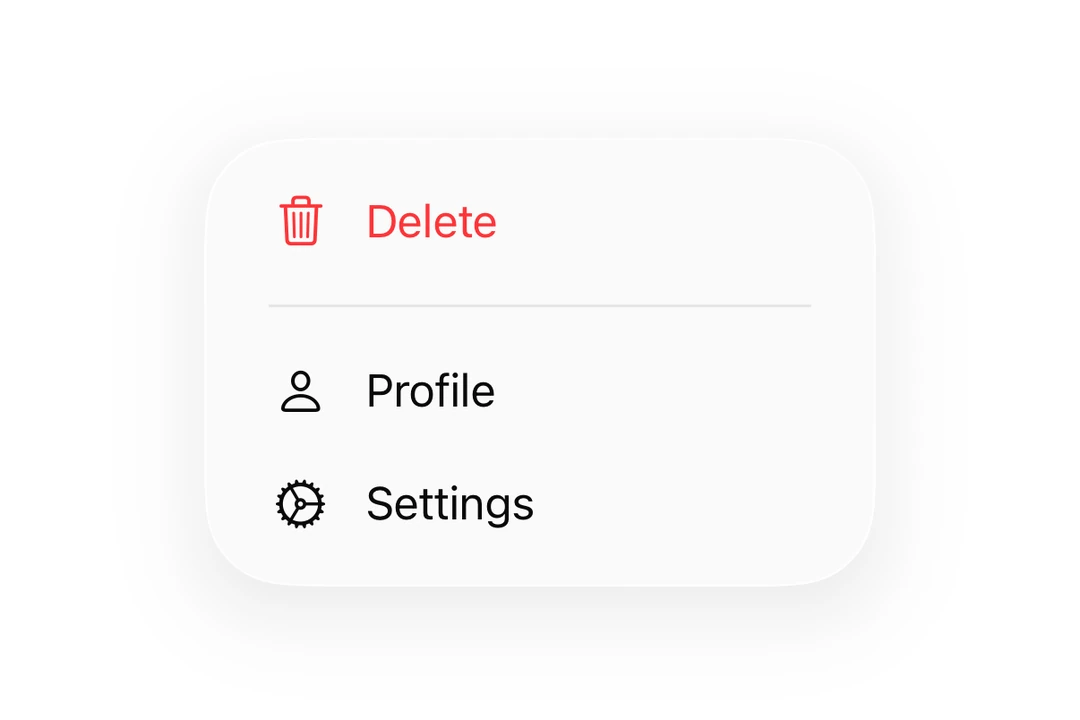
      <Menu label="More" systemImage="ellipsis.circle">
        <Button label="Settings" systemImage="gear" onPress={() => console.log('Settings')} />
        <Button label="Profile" systemImage="person" onPress={() => console.log('Profile')} />
        <Divider />
        <Button
          label="Delete"
          role="destructive"
          systemImage="trash"
          onPress={() => console.log('Delete')}
        />
      </Menu>
    </Host>
  );
}
自定义标签
🌐 Custom label
你可以将 React 节点作为标签传递,以进行自定义样式。
🌐 You can pass a React node as the label for custom styling.
import { Host, Menu, Button, Text } from '@expo/ui/swift-ui';
import { foregroundStyle } from '@expo/ui/swift-ui/modifiers';

export default function CustomLabelMenuExample() {
  return (
    <Host matchContents>
      <Menu label={<Text modifiers={[foregroundStyle('accentColor')]}>Custom Label</Text>}>
        <Button label="Action 1" onPress={() => console.log('Action 1')} />
        <Button label="Action 2" onPress={() => console.log('Action 2')} />
      </Menu>
    </Host>
  );
}
React Native 组件作为标签
🌐 React Native components as label
你可以通过将 React Native 视图(例如 Pressable)封装在 RNHostView 中来作为菜单的标签使用它。
🌐 You can use a React Native view (such as Pressable) as the menu's label by wrapping it in RNHostView.
import { Host, Menu, Button, RNHostView } from '@expo/ui/swift-ui';
import { Pressable, Text } from 'react-native';

export default function RNLabelMenuExample() {
  return (
    <Host matchContents>
      <Menu
        label={
          <RNHostView matchContents>
            <Pressable
              onPress={() => console.log('RN trigger pressed')}
              style={{
                alignSelf: 'flex-start',
                paddingHorizontal: 16,
                paddingVertical: 10,
                borderRadius: 8,
                backgroundColor: '#9B59B6',
              }}>
              <Text style={{ color: 'white', fontWeight: '600' }}>RN Pressable Trigger</Text>
            </Pressable>
          </RNHostView>
        }>
        <Button label="Item 1" onPress={() => console.log('Item 1')} />
        <Button label="Item 2" onPress={() => console.log('Item 2')} />
      </Menu>
    </Host>
  );
}
嵌套菜单
🌐 Nested menu
菜单可以嵌套以创建子菜单。
🌐 Menus can be nested to create submenus.
import { Host, Menu, Button } from '@expo/ui/swift-ui';

export default function NestedMenuExample() {
  return (
    <Host matchContents>
      <Menu label="Main Menu">
        <Button label="Item 1" onPress={() => console.log('Item 1')} />
        <Menu label="Submenu">
          <Button label="Sub Item 1" onPress={() => console.log('Sub Item 1')} />
          <Button label="Sub Item 2" onPress={() => console.log('Sub Item 2')} />
        </Menu>
        <Button label="Item 2" onPress={() => console.log('Item 2')} />
      </Menu>
    </Host>
  );
}
使用主要动作
🌐 With primary action
当提供 onPrimaryAction 时,单击会触发主要操作,而长按会显示菜单。
🌐 When onPrimaryAction is provided, a single tap triggers the primary action while a long-press shows the menu.
import { Host, Menu, Button } from '@expo/ui/swift-ui';

export default function PrimaryActionMenuExample() {
  return (
    <Host matchContents>
      <Menu
        label="Tap or Hold"
        systemImage="play.circle"
        onPrimaryAction={() => console.log('Primary action triggered!')}>
        <Button label="Menu Item 1" onPress={() => console.log('Menu Item 1')} />
        <Button label="Menu Item 2" onPress={() => console.log('Menu Item 2')} />
        <Button label="Menu Item 3" onPress={() => console.log('Menu Item 3')} />
      </Menu>
    </Host>
  );
}
使用修饰符进行样式化
🌐 Styling with modifiers
你可以使用 buttonStyle 修饰符来更改菜单触发器的外观。
🌐 You can use the buttonStyle modifier to change the appearance of the menu trigger.
import { Host, Menu, Button } from '@expo/ui/swift-ui';
import { buttonStyle } from '@expo/ui/swift-ui/modifiers';

export default function StyledMenuExample() {
  return (
    <Host matchContents>
      <Menu label="Styled Menu" modifiers={[buttonStyle('borderedProminent')]}>
        <Button label="Styled Action 1" onPress={() => console.log('Styled 1')} />
        <Button label="Styled Action 2" onPress={() => console.log('Styled 2')} />
      </Menu>
    </Host>
  );
}
玻璃菜单
🌐 Glass menu
要创建具有 iOS 液态玻璃外观的菜单,请在菜单组件上使用 buttonStyle('glass') 或 buttonStyle('glassProminent')。
🌐 To create a menu with the iOS Liquid Glass appearance, use buttonStyle('glass') or buttonStyle('glassProminent') on the Menu component.
重要: 不要对菜单的标签视图使用
glassEffect()修饰符来实现玻璃效果。这会导致一个视觉伪影,即在菜单消失时触发控件后面会短暂出现一个矩形光晕。始终使用buttonStyle,它可以正确地与菜单的消失动画集成。
import { Host, Menu, Button } from '@expo/ui/swift-ui';
import { buttonStyle } from '@expo/ui/swift-ui/modifiers';

export default function GlassMenuExample() {
  return (
    <Host matchContents>
      <Menu label="Glass Menu" systemImage="ellipsis.circle" modifiers={[buttonStyle('glass')]}>
        <Button label="Action 1" onPress={() => console.log('Action 1')} />
        <Button label="Action 2" onPress={() => console.log('Action 2')} />
      </Menu>
    </Host>
  );
}
为了获得更显著的玻璃效果,请使用 glassProminent:
🌐 For a more prominent glass effect, use glassProminent:
import { Host, Menu, Button } from '@expo/ui/swift-ui';
import { buttonStyle } from '@expo/ui/swift-ui/modifiers';

export default function GlassProminentMenuExample() {
  return (
    <Host matchContents>
      <Menu
        label="Glass Prominent Menu"
        systemImage="slider.horizontal.3"
        modifiers={[buttonStyle('glassProminent')]}>
        <Button label="Settings" systemImage="gear" onPress={() => console.log('Settings')} />
        <Button
          label="Filter"
          systemImage="line.3.horizontal.decrease"
          onPress={() => console.log('Filter')}
        />
      </Menu>
    </Host>
  );
}
有对照组
🌐 With control group
在菜单中使用ControlGroup来渲染一行水平的图标按钮,类似于 Apple Music 或 Safari 菜单中的快速操作行。
🌐 Use a ControlGroup inside a menu to render a horizontal row of icon buttons, similar to the quick actions row in Apple Music or Safari menus.
import { Host, Menu, ControlGroup, Button, Section, Divider } from '@expo/ui/swift-ui';

export default function MenuWithControlGroupExample() {
  return (
    <Host matchContents>
      <Menu label="Song Options" systemImage="ellipsis.circle">
        <ControlGroup>
          <Button systemImage="plus" label="Add" onPress={() => console.log('Add')} />
          <Button systemImage="star" label="Favorite" onPress={() => console.log('Favorite')} />
          <Button
            systemImage="square.and.arrow.up"
            label="Share"
            onPress={() => console.log('Share')}
          />
        </ControlGroup>
        <Section>
          <Button
            systemImage="text.badge.plus"
            label="Add to a Playlist"
            onPress={() => console.log('Add to Playlist')}
          />
          <Button
            systemImage="antenna.radiowaves.left.and.right"
            label="Create Station"
            onPress={() => console.log('Create Station')}
          />
        </Section>
        <Divider />
        <Button
          systemImage="hand.thumbsdown"
          label="Suggest Less"
          onPress={() => console.log('Suggest Less')}
        />
      </Menu>
    </Host>
  );
}
已禁用的项目
🌐 Disabled items
在菜单 Button 上使用 disabled(true) 修饰符可以使其显示为灰色并且不可交互。按钮仍然会出现在菜单中,但不会触发 onPress。
🌐 Use the disabled(true) modifier on a menu Button to render it greyed-out and non-interactive. The button still appears in the menu but won't fire onPress.
import { Host, Menu, Button } from '@expo/ui/swift-ui';
import { disabled } from '@expo/ui/swift-ui/modifiers';

export default function DisabledMenuItemExample() {
  return (
    <Host matchContents>
      <Menu label="Options">
        <Button label="Available" onPress={() => console.log('Available')} />
        <Button
          label="Locked"
          systemImage="lock"
          modifiers={[disabled(true)]}
          onPress={() => console.log('This never fires')}
        />
      </Menu>
    </Host>
  );
}
可选择的项目(勾选项)
🌐 Selectable items (checkmarks)
一个放在 Menu 中的 SwiftUI Toggle 会自动呈现为一行,当设置了 systemImage 时带有前导 SF 符号,并且当 isOn 为 true 时带有尾随勾选标记。使用这种模式,而不是自己发明自定义勾选项目。
🌐 A SwiftUI Toggle placed inside a Menu automatically renders as a row with a leading SF Symbol (when systemImage is set) and a trailing checkmark when isOn is true. Use this pattern instead of inventing a custom checkmark item.
import { Host, Menu, Button, Toggle } from '@expo/ui/swift-ui';
import { useState } from 'react';

export default function CheckmarkMenuItemExample() {
  const [showCompleted, setShowCompleted] = useState(true);
  const [showArchived, setShowArchived] = useState(false);

  return (
    <Host matchContents>
      <Menu label="Filter" systemImage="line.3.horizontal.decrease.circle">
        <Toggle
          isOn={showCompleted}
          label="Show completed"
          systemImage="checkmark.circle"
          onIsOnChange={setShowCompleted}
        />
        <Toggle
          isOn={showArchived}
          label="Show archived"
          systemImage="archivebox"
          onIsOnChange={setShowArchived}
        />
        <Button label="Clear filters" onPress={() => console.log('Clear')} />
      </Menu>
    </Host>
  );
}
仅图标菜单按钮
🌐 Icon only menu button
使用 labelStyle('iconOnly') 修饰符仅显示图标而不显示标签文字。为了无障碍访问,仍应提供 label 属性。
🌐 Use the labelStyle('iconOnly') modifier to display only the icon without the label text. The label prop should still be provided for accessibility purposes.
import { Host, Menu, Button } from '@expo/ui/swift-ui';
import { labelStyle } from '@expo/ui/swift-ui/modifiers';

export default function IconOnlyMenuExample() {
  return (
    <Host matchContents>
      <Menu label="Icon Only Button" systemImage="gear" modifiers={[labelStyle('iconOnly')]}>
        <Button label="Menu Item 1" onPress={() => console.log('Menu Item 1')} />
        <Button label="Menu Item 2" onPress={() => console.log('Menu Item 2')} />
        <Button label="Menu Item 3" onPress={() => console.log('Menu Item 3')} />
      </Menu>
    </Host>
  );
}
应用接口
🌐 API
import { Menu } from '@expo/ui/swift-ui';
Component
Type: React.Element<MenuProps>
Displays a dropdown menu when tapped.
Props for the Menu component.
ReactNodeThe menu's content items, which are shown when the menu is opened.
Can contain Button, Toggle, Picker, Section, Divider or nested Menu components.
ReactNodeThe label for the menu trigger. Can be a string for simple text labels, or a ReactNode for custom label content.
() => voidA callback that is invoked when the user taps the menu label. When provided, a single tap triggers this action, while a long-press shows the menu. When not provided, a single tap shows the menu.
stringAn SF Symbol name to display alongside the label.
Only used when label is a string.