This documentation is available as Markdown for AI agents and LLMs. See the full Markdown index or append .md to any documentation URL.
切换
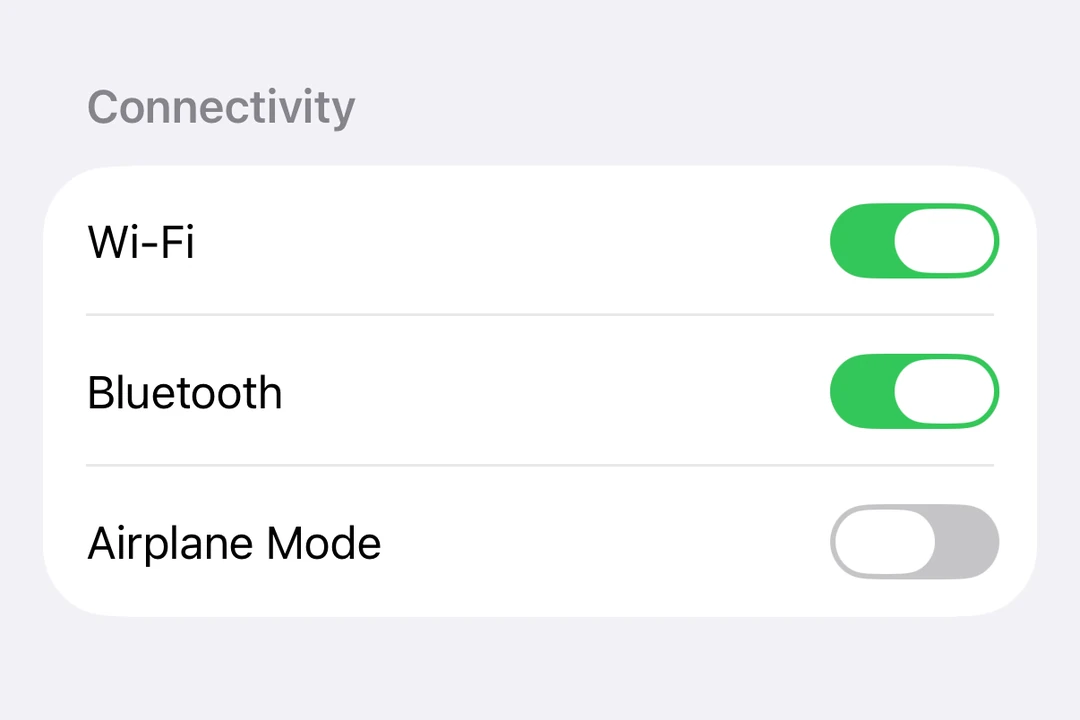
用于显示原生切换的 SwiftUI Toggle 组件。
信息 有关跨平台使用,请参阅通用
Switch—— 它会根据平台呈现相应的原生组件。
Expo UI Toggle 与官方的 SwiftUI Toggle API 一致,并支持通过 toggleStyle 修饰符进行样式设置。
🌐 Expo UI Toggle matches the official SwiftUI Toggle API and supports styling via the toggleStyle modifier.
安装
🌐 Installation
- npx expo install @expo/uiIf you are installing this in an existing React Native app, make sure to install expo in your project.
用法
🌐 Usage
基本切换
🌐 Basic toggle
import { useState } from 'react';
import { Host, Toggle } from '@expo/ui/swift-ui';

export default function BasicToggleExample() {
  const [isOn, setIsOn] = useState(false);

  return (
    <Host matchContents>
      <Toggle isOn={isOn} onIsOnChange={setIsOn} label="Enable Feature" />
    </Host>
  );
}
切换系统图片
🌐 Toggle with system image
import { useState } from 'react';
import { Host, Toggle } from '@expo/ui/swift-ui';

export default function ToggleWithImageExample() {
  const [airplaneMode, setAirplaneMode] = useState(false);

  return (
    <Host matchContents>
      <Toggle
        isOn={airplaneMode}
        onIsOnChange={setAirplaneMode}
        label="Airplane Mode"
        systemImage="airplane"
      />
    </Host>
  );
}
切换样式
🌐 Toggle styles
使用 toggleStyle 修饰符来更改开关的外观。可用的样式有:automatic、switch 和 button。
🌐 Use the toggleStyle modifier to change the toggle's appearance. Available styles are: automatic, switch, and button.
注意: 在 tvOS 上无法使用
button样式。
import { useState } from 'react';
import { Host, Toggle, VStack } from '@expo/ui/swift-ui';
import { toggleStyle } from '@expo/ui/swift-ui/modifiers';

export default function ToggleStylesExample() {
  const [isOn, setIsOn] = useState(false);

  return (
    <Host matchContents>
      <VStack spacing={8}>
        <Toggle
          isOn={isOn}
          onIsOnChange={setIsOn}
          label="Switch Style"
          modifiers={[toggleStyle('switch')]}
        />
        <Toggle
          isOn={isOn}
          onIsOnChange={setIsOn}
          label="Button Style"
          modifiers={[toggleStyle('button')]}
        />
      </VStack>
    </Host>
  );
}
有色切换
🌐 Tinted toggle
使用 tint 修饰符来更改切换按钮的颜色。
🌐 Use the tint modifier to change the toggle's color.
import { useState } from 'react';
import { Host, Toggle } from '@expo/ui/swift-ui';
import { tint } from '@expo/ui/swift-ui/modifiers';

export default function TintedToggleExample() {
  const [isOn, setIsOn] = useState(true);

  return (
    <Host matchContents>
      <Toggle
        isOn={isOn}
        onIsOnChange={setIsOn}
        label="Custom Color"
        modifiers={[tint('#FF9500')]}
      />
    </Host>
  );
}
自定义标签内容
🌐 Custom label content
你可以将自定义组件作为 children 传递,以实现更复杂的切换标签。使用多个 Text 视图,其中第一个表示标题,第二个表示副标题。
🌐 You can pass custom components as children for more complex toggle labels. Use multiple Text views where the first represents the title and the second represents the subtitle.
import { useState } from 'react';
import { Host, Toggle, Text } from '@expo/ui/swift-ui';

export default function CustomLabelExample() {
  const [vibrateOnRing, setVibrateOnRing] = useState(false);

  return (
    <Host matchContents>
      <Toggle isOn={vibrateOnRing} onIsOnChange={setVibrateOnRing}>
        <Text>Vibrate on Ring</Text>
        <Text>Enable vibration when the phone rings</Text>
      </Toggle>
    </Host>
  );
}
隐藏标签
🌐 Hidden label
使用 labelsHidden 修饰符可以隐藏标签,同时保留其可访问性。
🌐 Use the labelsHidden modifier to hide the label while keeping it for accessibility.
import { useState } from 'react';
import { Host, Toggle } from '@expo/ui/swift-ui';
import { labelsHidden } from '@expo/ui/swift-ui/modifiers';

export default function HiddenLabelExample() {
  const [isOn, setIsOn] = useState(false);

  return (
    <Host matchContents>
      <Toggle
        isOn={isOn}
        onIsOnChange={setIsOn}
        label="Hidden Label"
        modifiers={[labelsHidden()]}
      />
    </Host>
  );
}
应用接口
🌐 API
import { Toggle } from '@expo/ui/swift-ui';
Component
Type: React.Element<ToggleProps>
A control that toggles between on and off states.
ReactNodeCustom content for the toggle label. Use multiple Text views where
the first represents the title and the second represents the subtitle.
(isOn: boolean) => voidA callback that is called when the toggle's state changes.
isOn: booleanThe new state of the toggle.