This documentation is available as Markdown for AI agents and LLMs. See the full Markdown index or append .md to any documentation URL.
TextField
用于文本输入的 SwiftUI 文本字段组件。
信息 有关跨平台使用,请参阅通用
TextInput—— 它会根据平台呈现相应的原生组件。
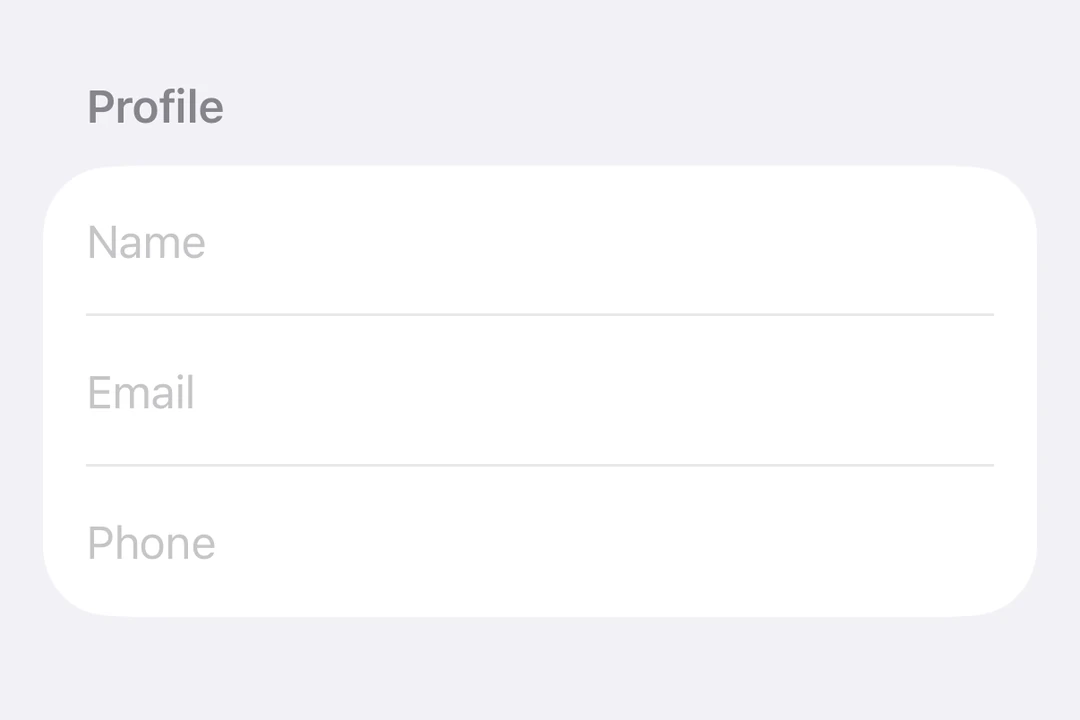
Expo UI TextField 与官方 SwiftUI TextField API 相匹配,支持单行和多行输入、键盘配置、提交处理,以及用于编程控制的命令式 ref。
🌐 Expo UI TextField matches the official SwiftUI TextField API and supports single-line and multiline input, keyboard configuration, submit handling, and an imperative ref for programmatic control.
安装
🌐 Installation
- npx expo install @expo/uiIf you are installing this in an existing React Native app, make sure to install expo in your project.
用法
🌐 Usage
未受控的文本字段
🌐 Uncontrolled text field
将useNativeState可观察对象绑定到text。该字段会自动跟踪用户的输入,你可以从textState.value读取当前值。
🌐 Bind a useNativeState observable to text. The field tracks the user's input on its own, and you read the current value from textState.value.
import { Host, TextField, useNativeState } from '@expo/ui/swift-ui';

export default function BasicTextFieldExample() {
  const textState = useNativeState('');

  return (
    <Host matchContents>
      <TextField placeholder="Username" text={textState} />
    </Host>
  );
}
受控文本字段
🌐 Controlled text field
传递一个 onTextChange 工作单元以转换或验证输入,并将结果写回 useNativeState 可观察状态。下面的示例会在输入时将文本转换为大写。
🌐 Pass an onTextChange worklet to transform or validate input and write the result back to the useNativeState observable state. The example below uppercases the text as it is typed.
注意: Worklets 需要安装
react-native-worklets。
import { Host, TextField, useNativeState } from '@expo/ui/swift-ui';
import { useCallback } from 'react';

export default function ControlledTextFieldExample() {
  const text = useNativeState('');

  const handleTextChange = useCallback(
    (value: string) => {
      'worklet';
      text.value = value.toUpperCase();
    },
    [text]
  );

  return (
    <Host matchContents>
      <TextField placeholder="Name" text={text} onTextChange={handleTextChange} />
    </Host>
  );
}
多行文本字段
🌐 Multiline text field
将 axis="vertical" 设置为允许文本字段垂直扩展。使用 lineLimit 修饰符来控制可见行数。在使用 Host matchContents 时,添加 fixedSize({ horizontal: false, vertical: true }) 以便文本字段在使用其理想高度的同时接受父容器的宽度。
🌐 Set axis="vertical" to allow the text field to expand vertically. Use the lineLimit modifier to control the visible line count. When using Host matchContents, add fixedSize({ horizontal: false, vertical: true }) so the text field accepts the parent's width while using its ideal height.
import { Host, TextField, useNativeState } from '@expo/ui/swift-ui';
import { lineLimit, fixedSize } from '@expo/ui/swift-ui/modifiers';

export default function MultilineTextFieldExample() {
  const textState = useNativeState('');

  return (
    <Host matchContents>
      <TextField
        axis="vertical"
        text={textState}
        placeholder="Tell us about yourself..."
        modifiers={[lineLimit(5), fixedSize({ horizontal: false, vertical: true })]}
      />
    </Host>
  );
}
键盘类型
🌐 Keyboard type
使用 keyboardType 修饰符来显示特定的键盘布局。
🌐 Use the keyboardType modifier to display a specific keyboard layout.
import { Host, TextField, useNativeState } from '@expo/ui/swift-ui';
import { keyboardType, autocorrectionDisabled } from '@expo/ui/swift-ui/modifiers';

export default function KeyboardTypeExample() {
  const textState = useNativeState('');

  return (
    <Host matchContents>
      <TextField
        placeholder="Email"
        text={textState}
        modifiers={[keyboardType('email-address'), autocorrectionDisabled()]}
      />
    </Host>
  );
}
提交处理
🌐 Submit handling
使用 submitLabel 修饰符来自定义回车键,使用 onSubmit 来处理提交操作。
🌐 Use the submitLabel modifier to customize the return key and onSubmit to handle the submit action.
import { Host, TextField, useNativeState } from '@expo/ui/swift-ui';
import { submitLabel, onSubmit } from '@expo/ui/swift-ui/modifiers';

export default function SubmitHandlingExample() {
  const textState = useNativeState('');

  return (
    <Host matchContents>
      <TextField
        placeholder="Search..."
        text={textState}
        modifiers={[
          submitLabel('search'),
          onSubmit(() => console.log('Submitted:', textState.value)),
        ]}
      />
    </Host>
  );
}
命令参考
🌐 Imperative ref
使用 ref 以命令式方式设置文本、聚焦、失焦或选择文本。
🌐 Use a ref to imperatively set text, focus, blur, or select text.
注意:
setSelection需要 iOS 18.0+ / tvOS 18.0+。其他引用方法在所有受支持的版本上都可用。
import { useRef } from 'react';
import {
  Host,
  TextField,
  TextFieldRef,
  Button,
  HStack,
  VStack,
  useNativeState,
} from '@expo/ui/swift-ui';
import { buttonStyle } from '@expo/ui/swift-ui/modifiers';

export default function ImperativeRefExample() {
  const ref = useRef<TextFieldRef>(null);
  const textState = useNativeState('Select me!');

  return (
    <Host matchContents>
      <VStack>
        <TextField ref={ref} text={textState} placeholder="Imperative field" />
        <HStack spacing={12}>
          <Button
            modifiers={[buttonStyle('bordered')]}
            onPress={() => ref.current?.focus()}
            label="Focus"
          />
          <Button
            modifiers={[buttonStyle('bordered')]}
            onPress={() => ref.current?.blur()}
            label="Blur"
          />
          <Button
            modifiers={[buttonStyle('bordered')]}
            onPress={() => ref.current?.setText('SwiftUI rocks!')}
            label="Set Text"
          />
          <Button
            modifiers={[buttonStyle('bordered')]}
            onPress={() => ref.current?.clear()}
            label="Clear"
          />
          <Button
            modifiers={[buttonStyle('bordered')]}
            onPress={() => ref.current?.setSelection(0, 7)}
            label="Select"
          />
        </HStack>
      </VStack>
    </Host>
  );
}
Worklet 文本遮罩
🌐 Worklet text masking
当 onTextChange 被 'worklet' 指令标记时,它会在 UI 线程上同步运行,因此回调内对 useNativeState 可观察对象的写入会在下一帧之前生效。输入的文本和屏蔽的文本之间不会闪烁。下面的例子在用户输入时屏蔽电话号码,并从 worklet 中写入 text 和 selection,以保持光标在格式化值的末尾。
🌐 When onTextChange is marked with the 'worklet' directive, it runs synchronously on the UI thread, so writes to useNativeState observables inside the callback take effect before the next frame. There is no flicker between the typed text and the masked text. The example below masks a phone number as the user types and writes both text and selection from the worklet to keep the cursor at the end of the formatted value.
注意: Worklets 需要安装
react-native-worklets。selection属性需要 iOS 18.0+ / tvOS 18.0+。在较旧的版本中,worklet 仍然可以更新文本,但无法定位光标。
import { Host, TextField, useNativeState } from '@expo/ui/swift-ui';
import { keyboardType } from '@expo/ui/swift-ui/modifiers';
import { useEffectEvent } from 'react';

export default function WorkletPhoneMaskExample() {
  const phone = useNativeState('');
  const selection = useNativeState({ start: 0, end: 0 });

  const handleTextChange = useEffectEvent((v: string) => {
    'worklet';
    const digits = v.replace(/\D/g, '').slice(0, 10);
    let formatted = digits;
    if (digits.length > 6) {
      formatted = `(${digits.slice(0, 3)}) ${digits.slice(3, 6)}-${digits.slice(6)}`;
    } else if (digits.length > 3) {
      formatted = `(${digits.slice(0, 3)}) ${digits.slice(3)}`;
    }
    if (formatted !== v) {
      phone.value = formatted;
      // Snaps to end for demo. Real masks need smarter cursor handling.
      selection.value = { start: formatted.length, end: formatted.length };
    }
  });

  return (
    <Host matchContents>
      <TextField
        text={phone}
        selection={selection}
        placeholder="(555) 123-4567"
        modifiers={[keyboardType('phone-pad')]}
        onTextChange={handleTextChange}
      />
    </Host>
  );
}
应用接口
🌐 API
import { TextField } from '@expo/ui/swift-ui';
Component
Type: React.Element<TextFieldProps>
Renders a SwiftUI TextField.
boolean • Default: falseIf true, the text field will be focused automatically when mounted.
string • Default: 'horizontal'The axis along which the text field grows when content exceeds a single line.
'horizontal'— single line (default).'vertical'— expands vertically for multiline content. UselineLimitmodifier to cap visible lines.
Acceptable values are: 'vertical' | 'horizontal'
ReactNodeSlot children — supports <TextField.Placeholder> with a <Text> child
(any text-styling modifiers on that Text are preserved as the
placeholder's styling).
numberMaximum number of characters allowed. Truncates natively as the user types.
(focused: boolean) => voidA callback triggered when the field gains or loses focus.
(selection: {
  end: number,
  start: number
}) => void
A callback triggered when the text selection range changes.
(text: string) => voidA callback triggered when the text value changes.
If the callback is marked with the 'worklet' directive, it runs synchronously
on the UI thread; otherwise it is delivered asynchronously as a regular JS event.
Ref<TextFieldRef>ObservableState<TextFieldSelection>Observable state the field writes the current selection to.
Create with useNativeState<TextFieldSelection>({ start: 0, end: 0 }).
Use ref.setSelection(start, end) to set programmatically.
ObservableState<string>An observable state that holds the current text.
Create one with useNativeState('') or useNativeState('initial value').
If omitted, the field manages its own internal state.
Types
Observable state shared between JavaScript and native views (Jetpack Compose on Android and SwiftUI on iOS).
Type: SharedObject extended by:
| Property | Type | Description |
|---|---|---|
| onChange | [listener] | null | A single listener invoked on the native UI runtime whenever the value changes
(after iOS The callback must be a worklet so it can run synchronously on the UI thread.
Attach it inside Example
|
| value | T | The current value. Writes from a UI worklet are synchronous and immediately readable. Writes from the JS thread are scheduled to the UI thread asynchronously, the new value is not readable until the update has been applied. Prefer writing from a worklet when you need synchronous updates |
| get | () => T | Reads the current value. A React Compiler compliant alternative to reading |
| set | (value: T) => void | Writes a new value. A React Compiler-compliant alternative to assigning |
Can be used for imperatively focusing and setting text/selection on the TextField component.