This documentation is available as Markdown for AI agents and LLMs. See the full Markdown index or append .md to any documentation URL.
滑块
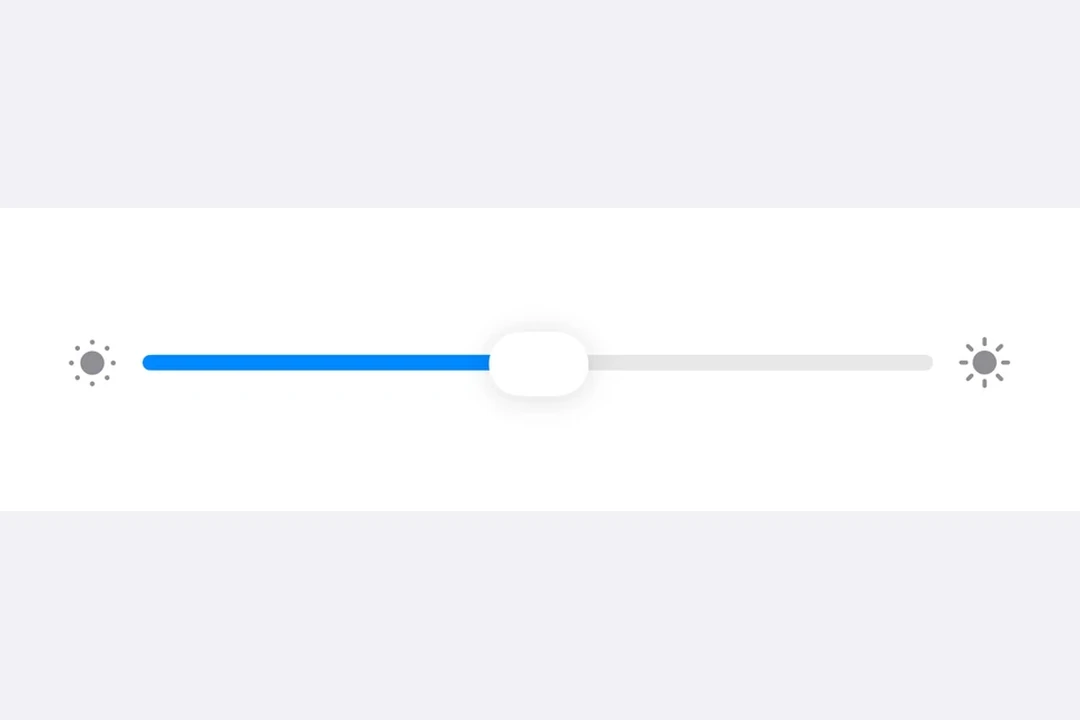
用于从一个范围中选择值的 SwiftUI 滑块组件。
信息 有关跨平台使用,请参阅通用
Slider—— 它会根据平台呈现相应的原生组件。
Expo UI 滑块与官方 SwiftUI Slider API 相匹配,并允许从有界范围中选择值。
🌐 Expo UI Slider matches the official SwiftUI Slider API and allows selecting values from a bounded range.
安装
🌐 Installation
- npx expo install @expo/uiIf you are installing this in an existing React Native app, make sure to install expo in your project.
用法
🌐 Usage
注意:
Slider是一个可调整宽度的组件,它会扩展以填充可用的水平空间,并且没有固有宽度。在Host上使用matchContents时,应该在Slider上应用frame修饰符以赋予它一个明确的宽度。或者,可以通过style(例如style={{ width: 300 }}或style={{ flex: 1 }})为Host指定明确的尺寸,或者将Slider放置在提供宽度约束的 SwiftUI 容器中,例如Form。
基础滑块
🌐 Basic slider
import { useState } from 'react';
import { Host, Slider } from '@expo/ui/swift-ui';

export default function BasicSliderExample() {
  const [value, setValue] = useState(0.5);

  return (
    <Host style={{ flex: 1 }}>
      <Slider value={value} onValueChange={setValue} />
    </Host>
  );
}
自定义范围滑块
🌐 Slider with custom range
import { useState } from 'react';
import { Host, Slider } from '@expo/ui/swift-ui';

export default function CustomRangeSliderExample() {
  const [value, setValue] = useState(50);

  return (
    <Host style={{ flex: 1 }}>
      <Slider value={value} min={0} max={100} onValueChange={setValue} />
    </Host>
  );
}
带步长的滑块
🌐 Slider with step
使用 step 属性定义离散增量。将 step 设置为 0 以获得连续值。
🌐 Use the step prop to define discrete increments. Set step to 0 for continuous values.
import { useState } from 'react';
import { Host, Slider } from '@expo/ui/swift-ui';

export default function SteppedSliderExample() {
  const [value, setValue] = useState(0);

  return (
    <Host style={{ flex: 1 }}>
      <Slider value={value} min={0} max={100} step={10} onValueChange={setValue} />
    </Host>
  );
}
带标签的滑块
🌐 Slider with labels
你可以添加标签来描述滑块的用途,并标记最小值和最大值的位置。
🌐 You can add labels to describe a slider's purpose and to mark the minimum and maximum value positions.
import { useState } from 'react';
import { Host, Slider, Text } from '@expo/ui/swift-ui';

export default function LabeledSliderExample() {
  const [value, setValue] = useState(50);

  return (
    <Host style={{ flex: 1 }}>
      <Slider
        value={value}
        min={0}
        max={100}
        label={<Text>Volume</Text>}
        minimumValueLabel={<Text>0</Text>}
        maximumValueLabel={<Text>100</Text>}
        onValueChange={setValue}
      />
    </Host>
  );
}
应用接口
🌐 API
import { Slider } from '@expo/ui/swift-ui';
Component
Type: React.Element<SliderProps>
numberLower limit the user can drag the thumb to. The visible track still
spans min..max, but the thumb stops at lowerLimit during drag.
numberThe maximum value of the slider. Updating this value does not trigger callbacks if the current value is above max.
numberThe minimum value of the slider. Updating this value does not trigger callbacks if the current value is below min.
(isEditing: boolean) => voidCallback triggered when the user starts or ends editing the slider.
(value: number) => voidCallback triggered on dragging along the slider.
numberUpper limit the user can drag the thumb to. The visible track still
spans min..max, but the thumb stops at upperLimit during drag.